Tools
Network Utilities
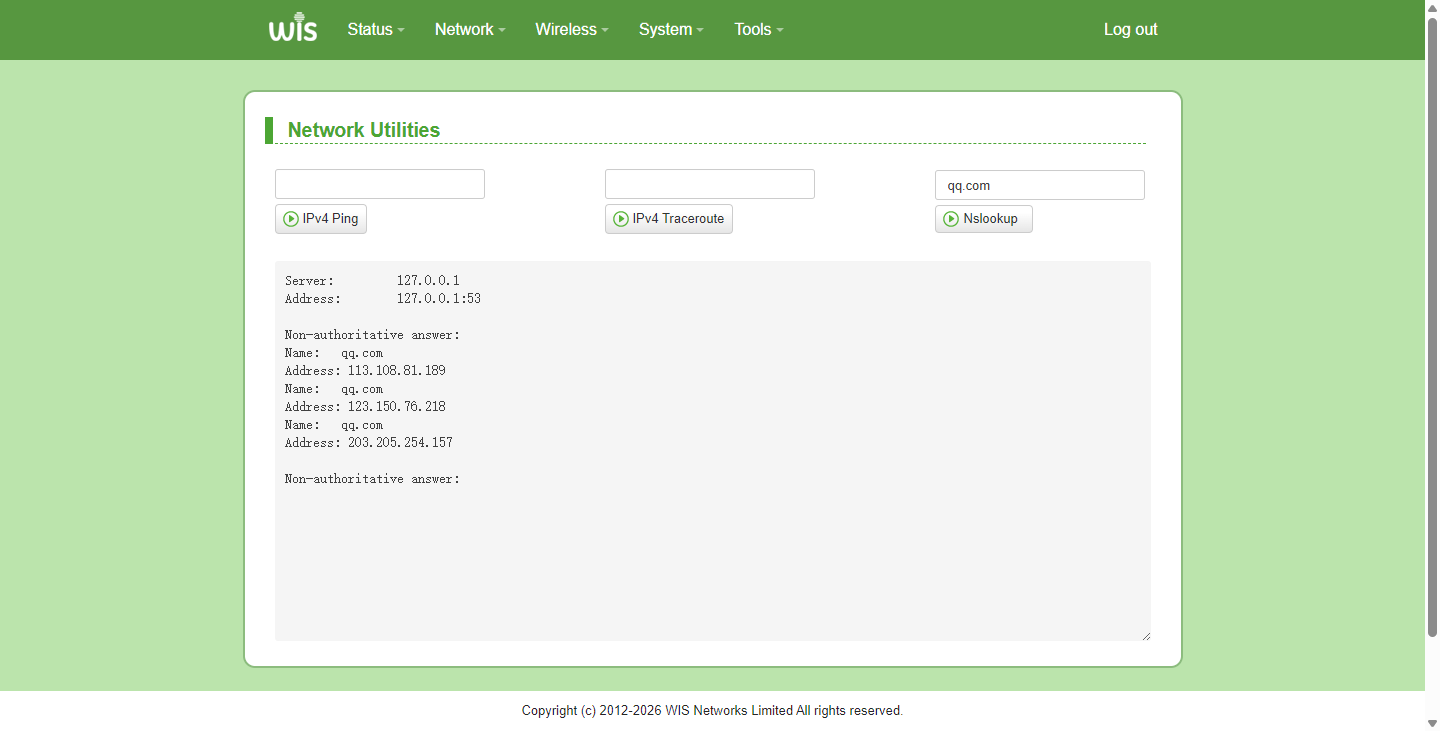
Network Utilities: IPv4 Ping, IPv4 Traceroute, Nslookup.
Click "Tools" > "Network Utilities" to enter this page.
Note: To use these tools, the wireless bridge must have Internet access; otherwise, you may only test LAN addresses.
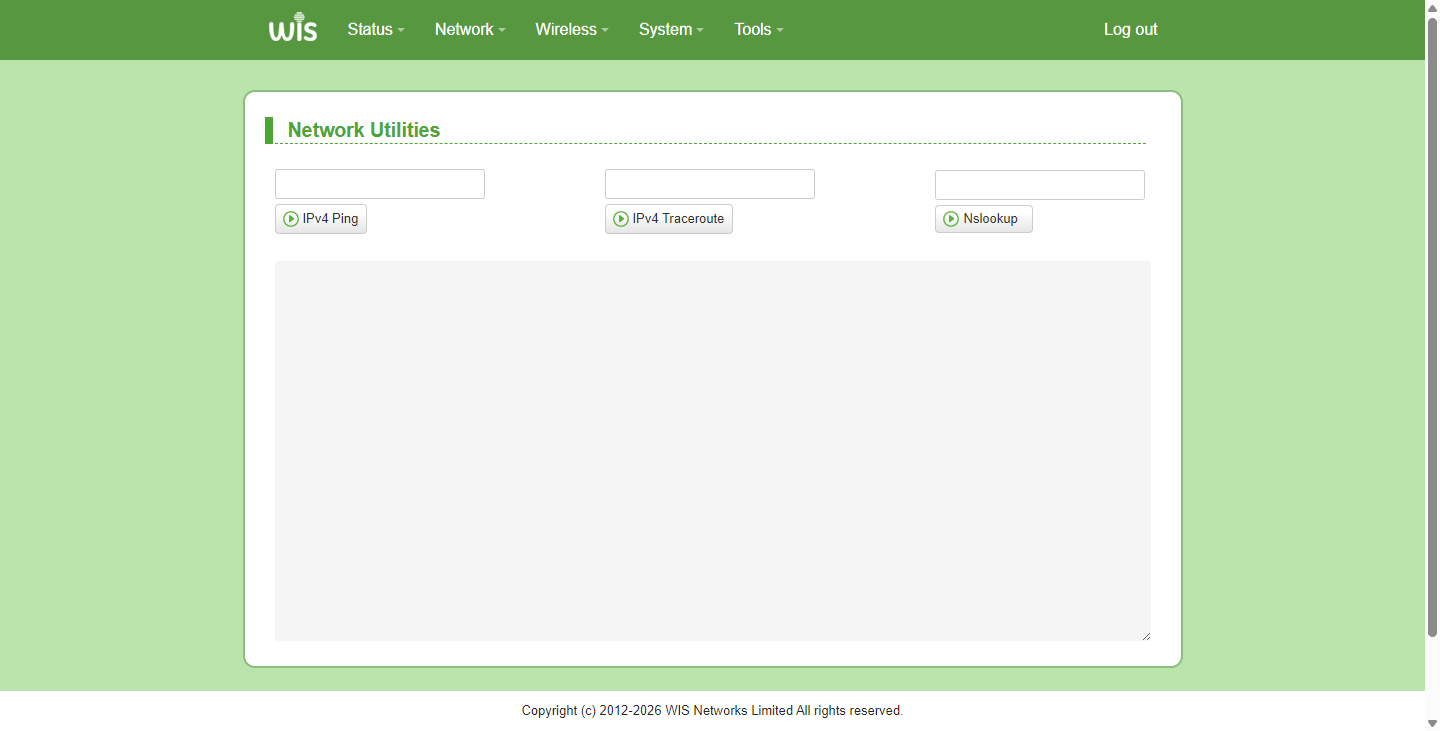
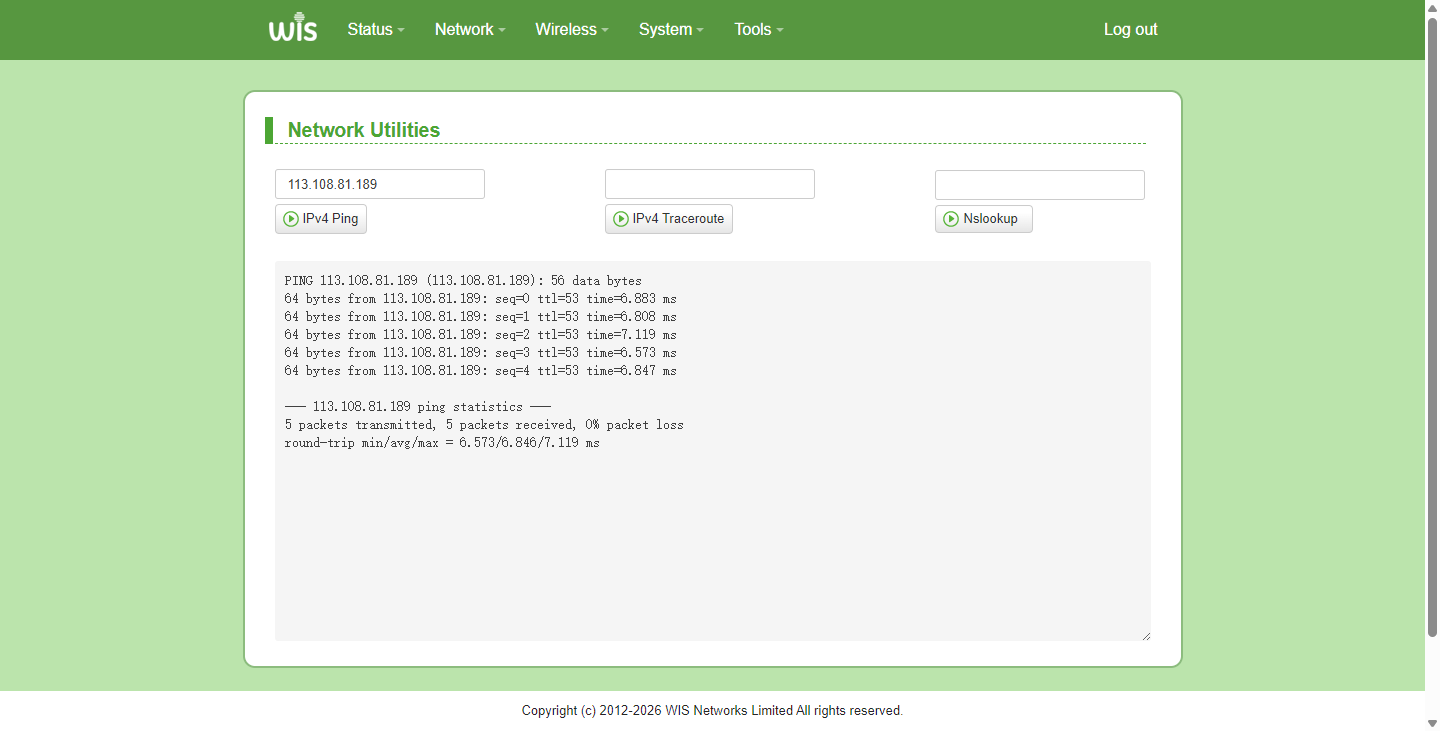
Ping Tool Usage Steps:
- Specify the target IP address in the ping tool input box(e.g., 113.108.81.189).
- Click "IPv4 Ping".
- Wait a few seconds and the result will be displayed. The test is completed.
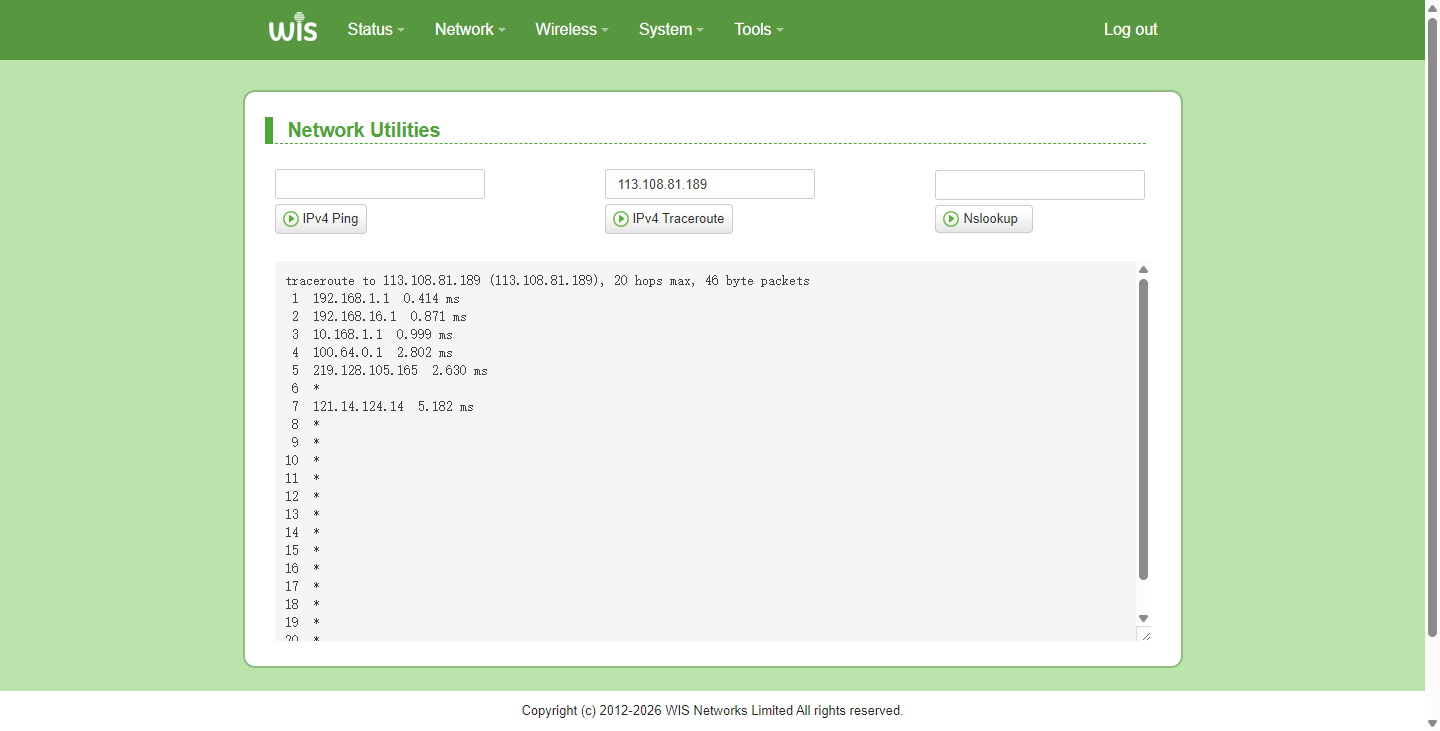
Traceroute Tool Usage Steps:
- Specify the target IP address in the traceroute input box (e.g., 113.108.81.189).
- Click "IPv4 Traceroute".
- Wait for a few seconds and the result will show that the route tracing is completed.
DNS Resolution Usage Steps:
- Enter the target domain name in the DNS lookup input box (e.g., qq.com).
- Click "Nslookup".
- Wait a few seconds and the result will show that the domain name resolution is complete.
Ping Watchdog
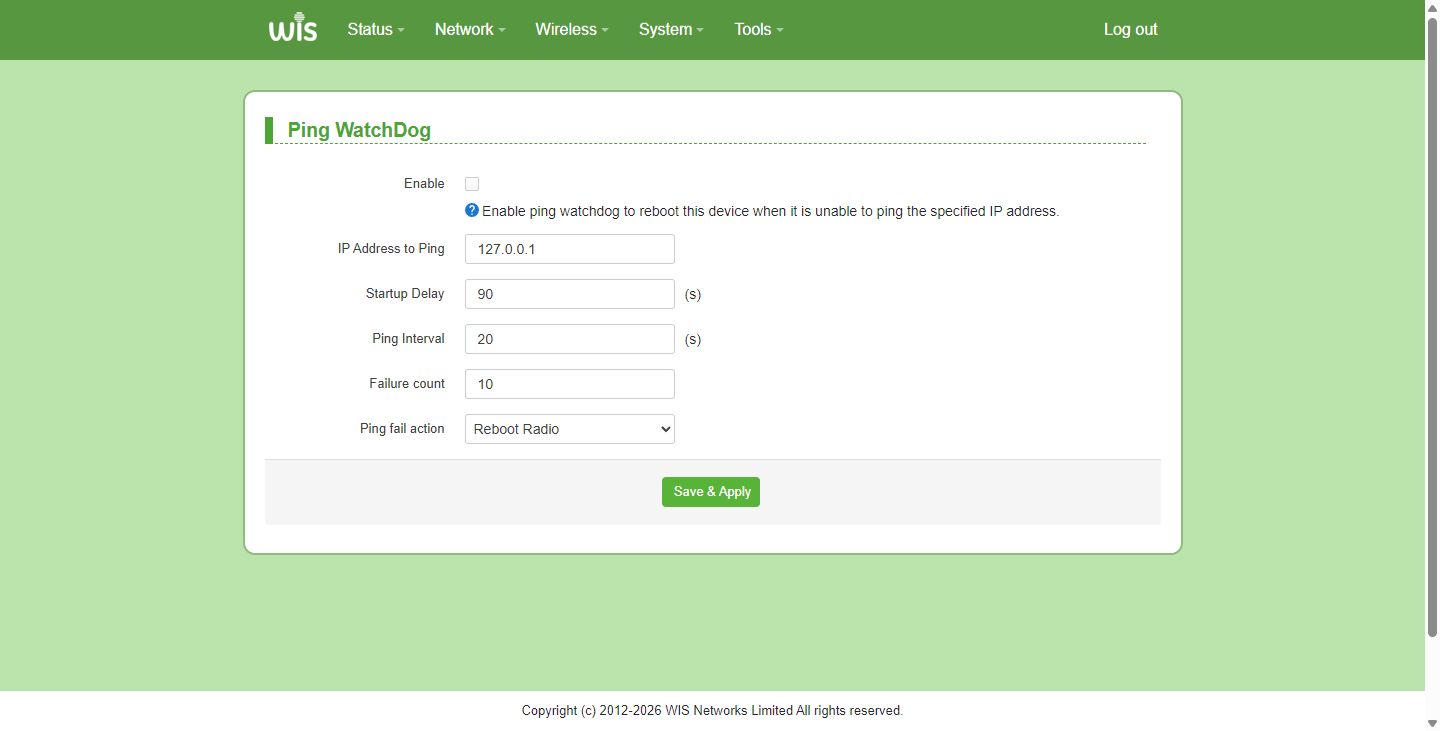
Ping Watchdog monitors bridge network connectivity in real time. If the destination address becomes unreachable after consecutive ping failures, the device can be configured to reboot the radio or Restart wireless. By default, Ping watchdog is turned off.
Click "Tools" > "Ping Watchdog" to open this page.
Parameter Description:
| Parameter | Description |
|---|---|
| Enable | Enable/Disable Ping Watchdog. |
| IP Address to Ping | Specifies the target IP address to ping. |
| Startup Delay | How long to wait before detecting activation. |
| Ping Interval | Specify the time interval between pings. |
| Failure Count | Ping failure count detected. |
| Ping fail action | When the Ping detection fails for a specified number of times, the program will perform the specified operation, e.g., Reboot Radio、Restart wireless. |
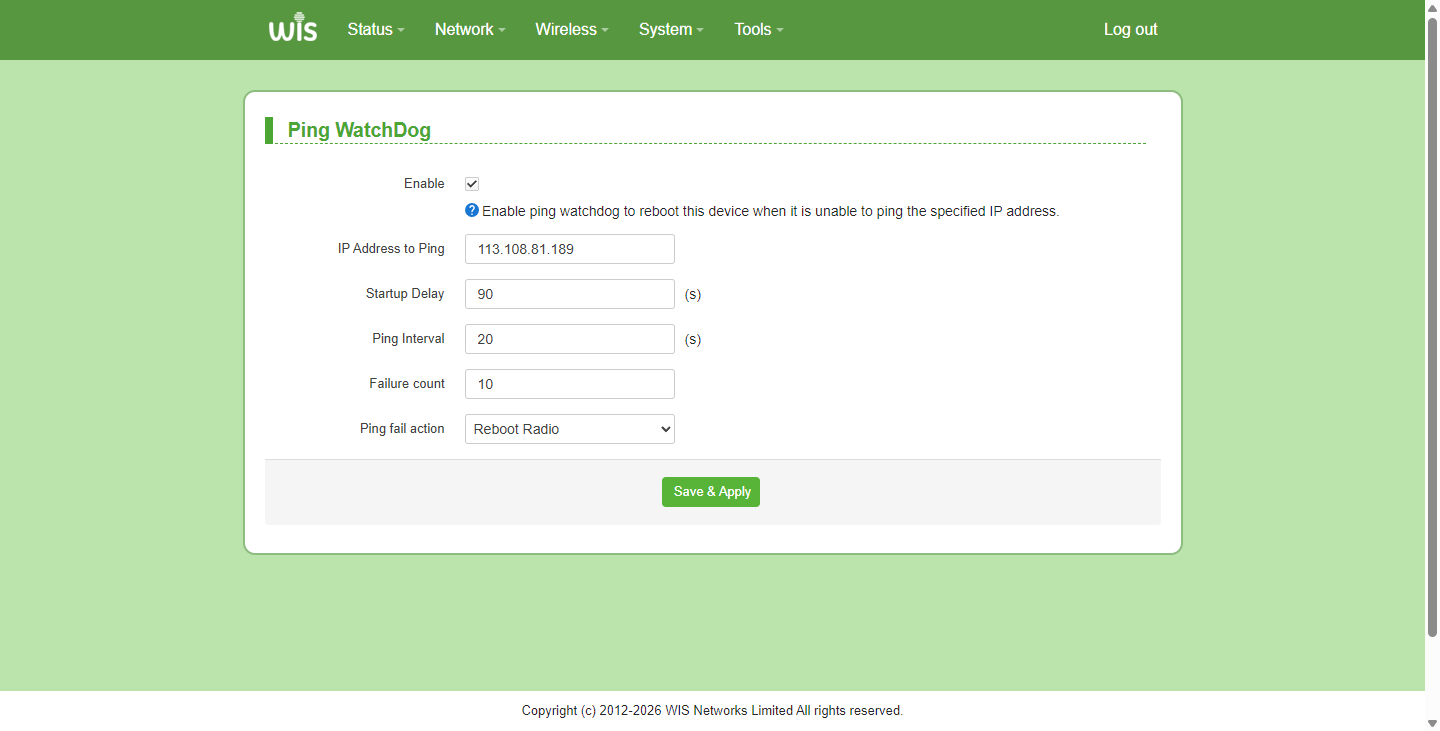
Ping Watchdog Steps:
- Enable:Enable Ping watchdog.
- IP Address to Ping:Specify the target IP address for Ping (e.g., 113.108.81.189).
- Startup Delay:Specify the delay time before detecting the target IP(e.g., 90).
- Ping Interval:Specify the Ping Interval (e.g., 20).
- Failure count:Specify the number of ping failure (e.g., 10).
- Ping fail action:When the ping detection fails for a specified number of times, the specified action is performed. In this example, the device is restarted.
- Click "Save & Apply", and complete configuration.
Discovery
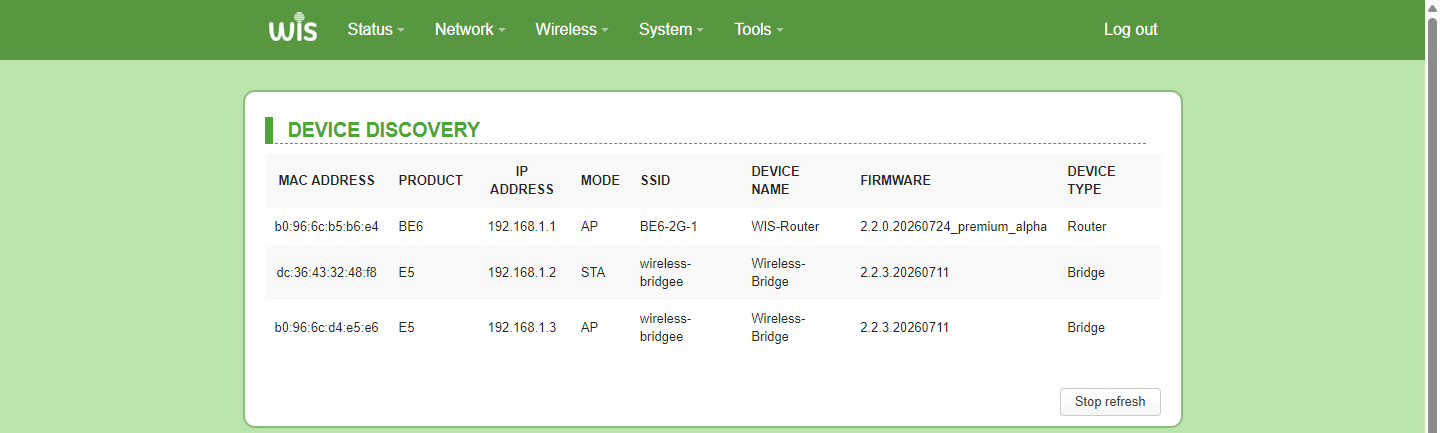
Scan the product models and related information in the wireless bridge LAN.
Click "Tools" > "discovery"and enter this page.
Parameter Description:
| Parameter | Description |
|---|---|
| MAC ADDRESS | The physical address of the device scanned in the LAN. |
| PRODUCT | The identification number used on the product to distinguish it from others. |
| IP ADDRESS | The IP address of the device in the LAN can be either static or dynamic. |
| MODE | Wireless working mode of the device. Support:Access Point (AP), Client (STA) . It can be modified in Wireless > Wireless Configuration > Mode. |
| SSID | Wireless signal name, i.e., Wi-Fi name. |
| DEVICE NAME | The host name of the device can be modified in "System"→"System"→“System Properties”→“Hostname”. |
| FIRMWARE | System firmware version number, each system update will be replaced with a new firmware version number. |
| DEVICE TYPE | The device's working type, such as bridge, router, AP. |
Alignment
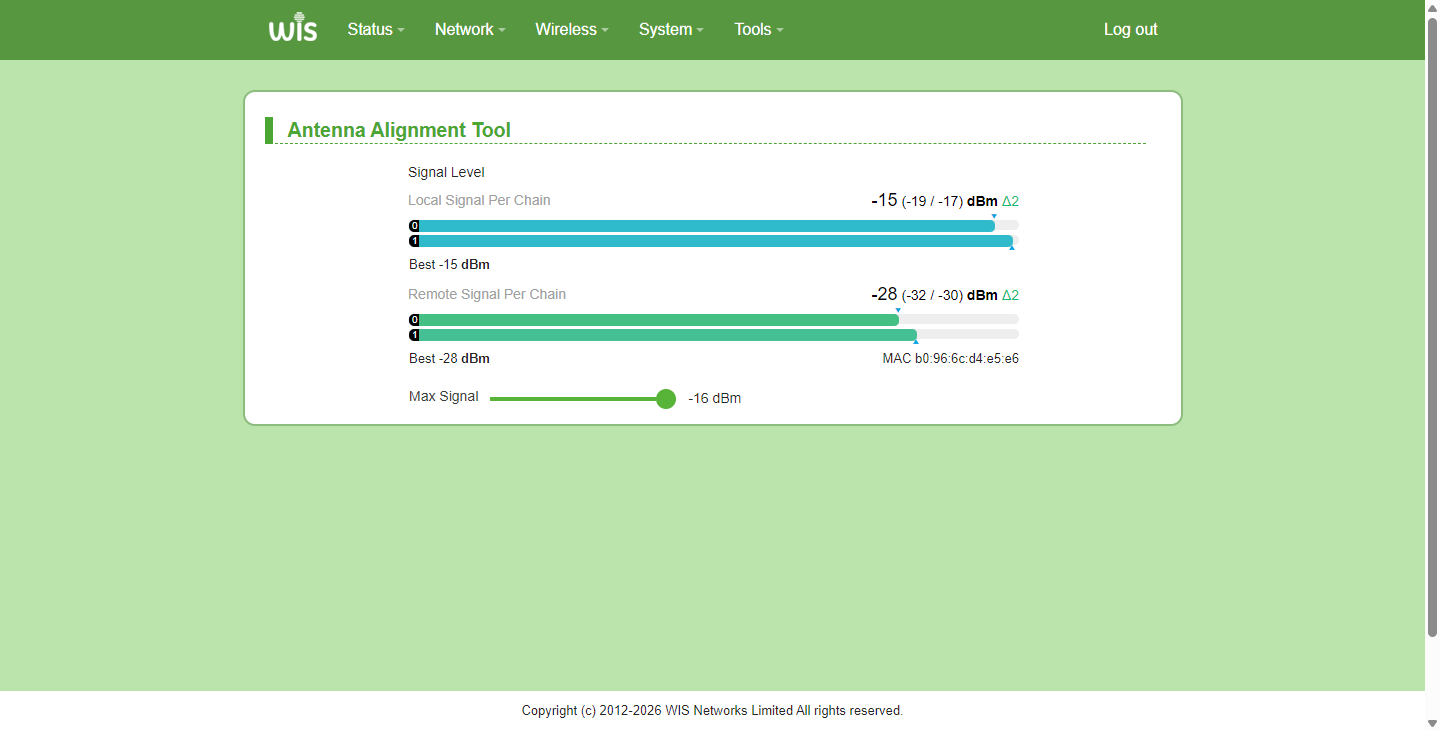
Antenna alignment is critical for stable long-range wireless bridge links. Alignment accuracy directly impacts signal strength, throughput and interference resistance.
Use the antenna alignment tool to check the signal strength of the local and remote devices during long-distance interconnections. By adjusting the direction or elevation angle, you can achieve the ideal signal strength for the device connection.
Spectrum Analysis
Spectrum scanning is a core part of wireless communication system planning, deployment and maintenance. It provides data support for frequency planning, channel selection and network optimization by analyzing signal distribution, strength and interference characteristics in the electromagnetic environment.
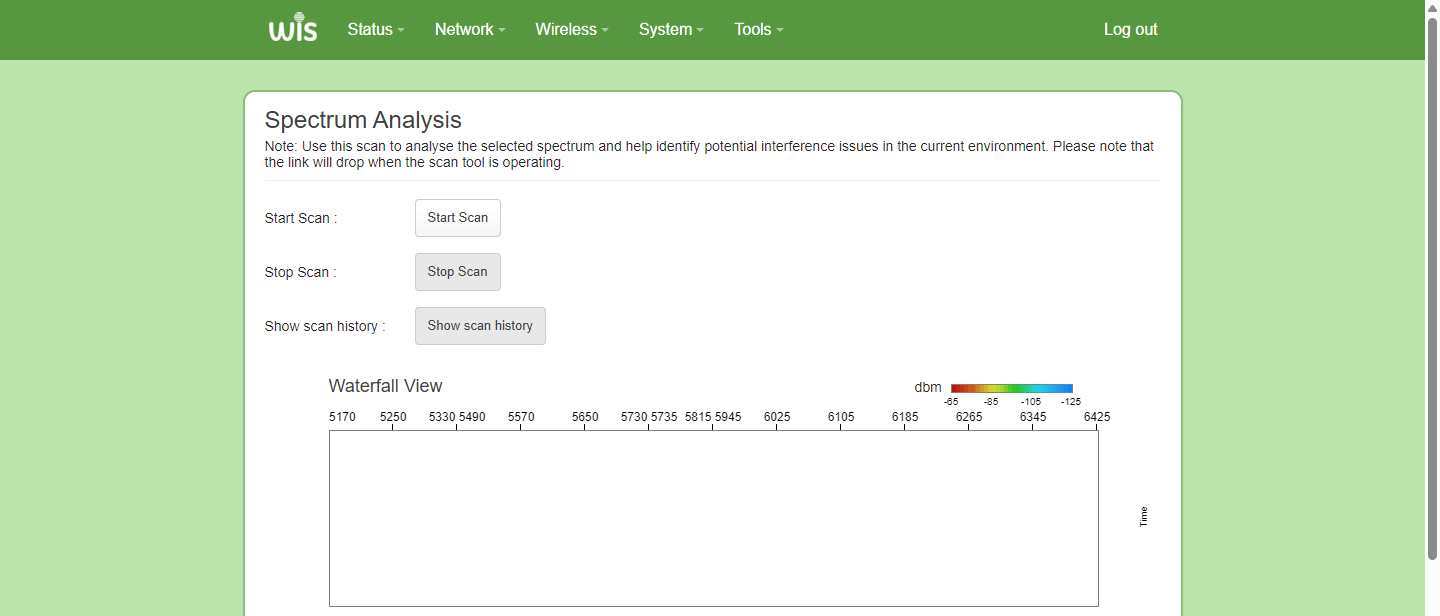
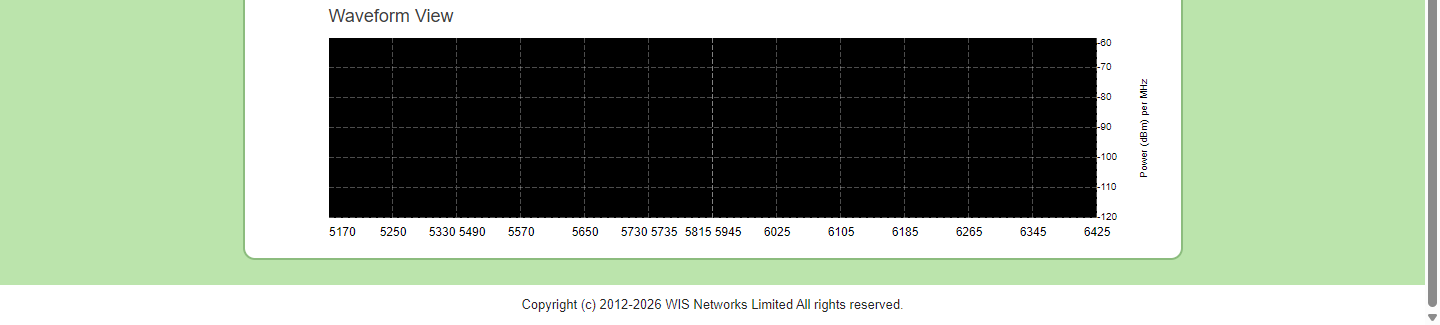
Perform the "Spectrum Scan" steps:
- Click “Start Scan”.
- Wait for the spectrum scan time to end.
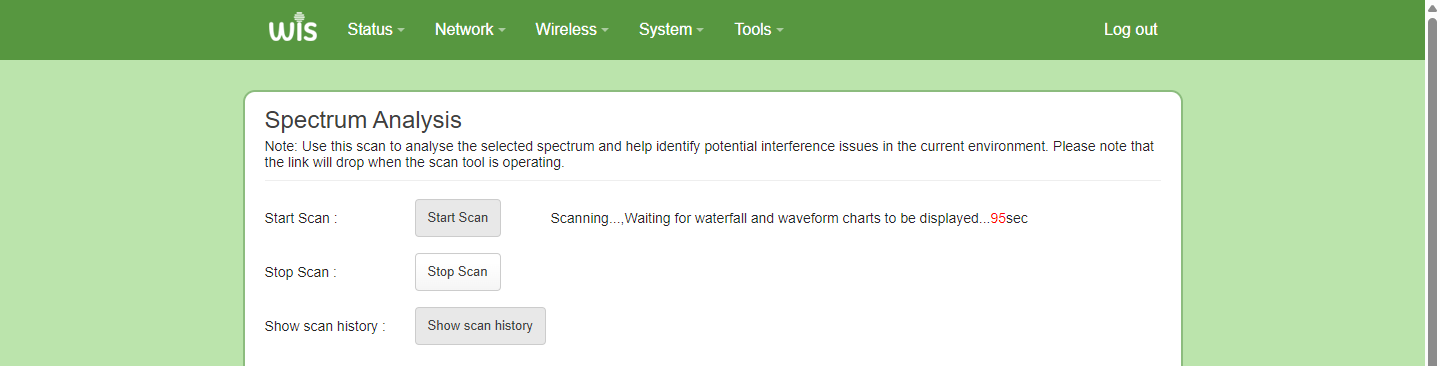
- During spectrum scanning, you can stop the spectrum scanning by clicking “Stop Scan”.
- When the countdown ends, view the Waterfall View and Waveform View charts.
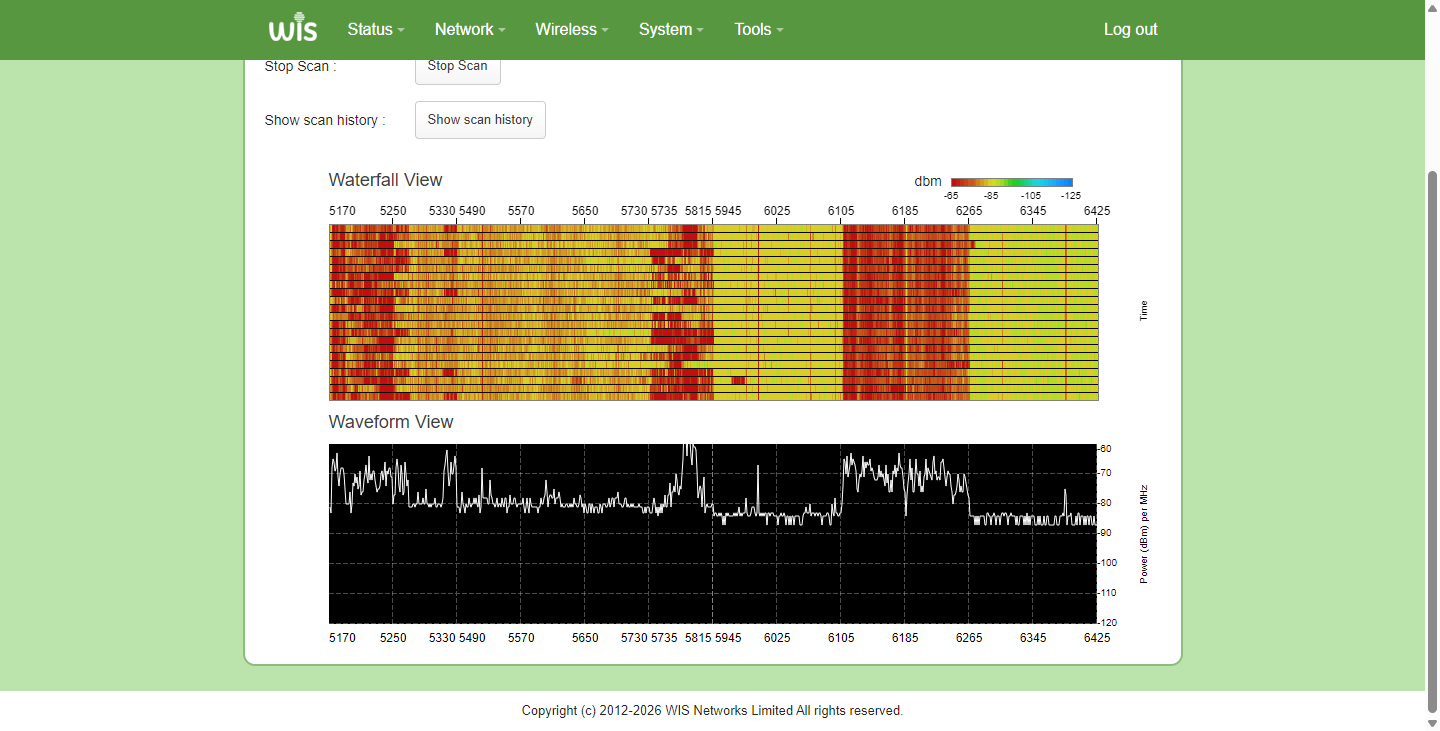
- Click "Show Scan History" to view the spectrum scan records again.
Speed Test
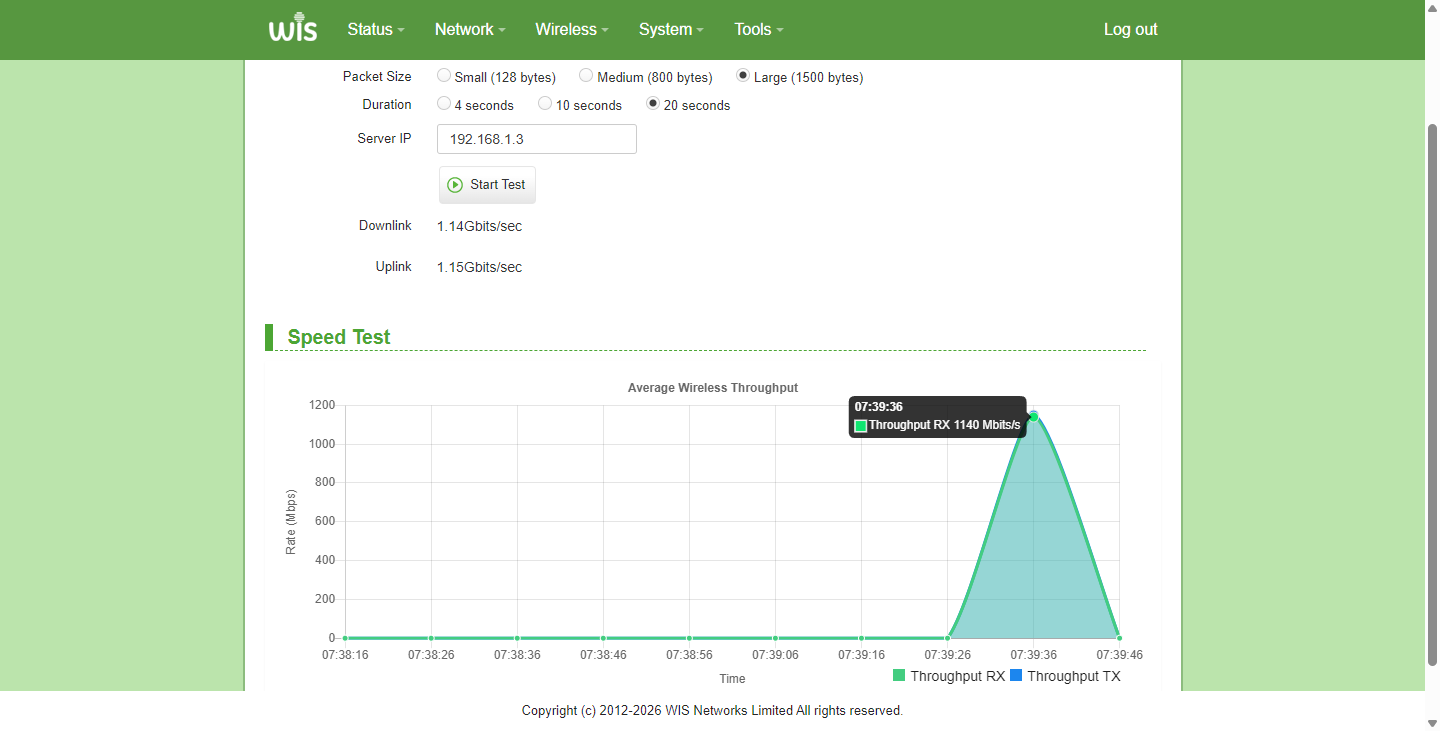
Wireless Link Test evaluates wireless link performance, measuring throughput, stability and bandwidth utilization between radio units.
Test the actual bandwidth of the point-to-point (PMP) link to ensure smooth operation of services such as video surveillance and data backhaul.
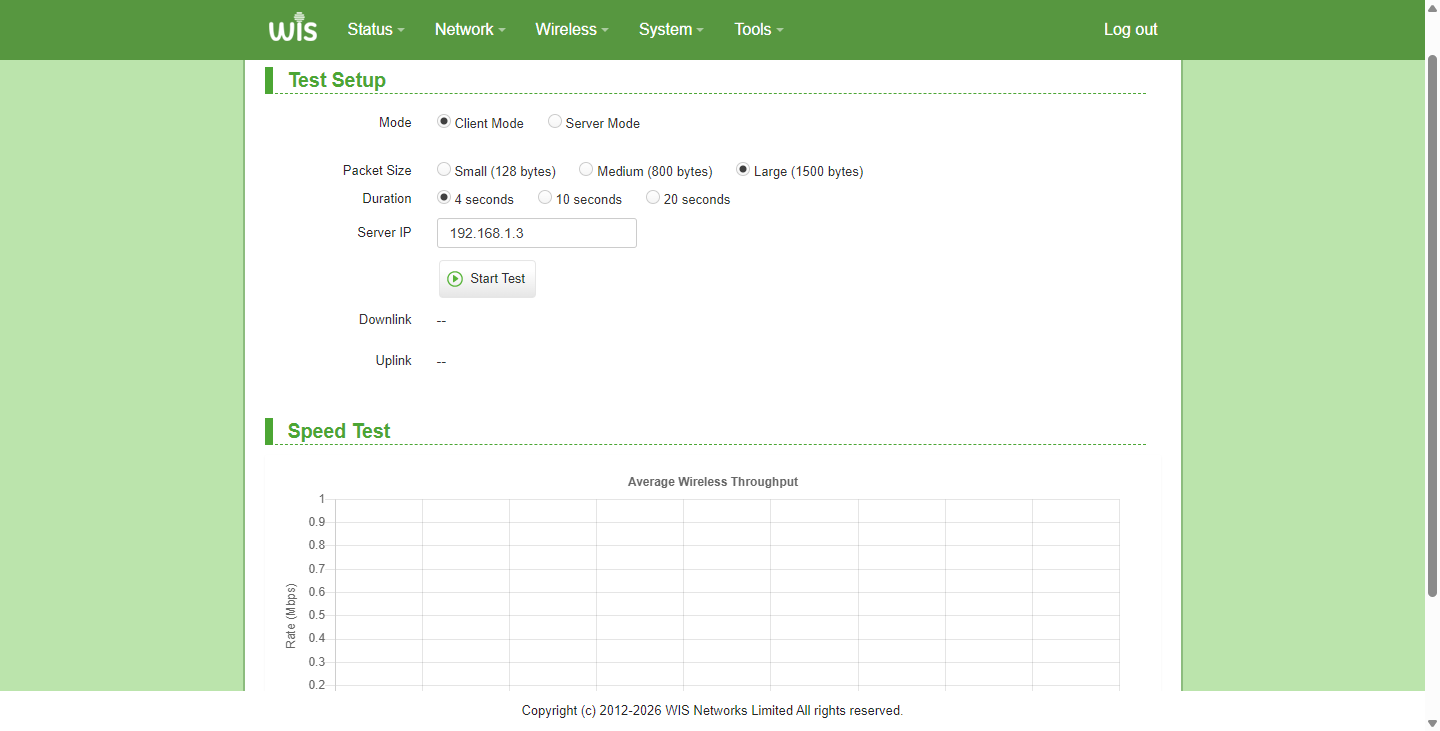
“Test Setup” Execution Steps:
- Ensure at least one client device is connected successfully.
- Log in to the client device management page, select "Server Mode", then click "Start Server".
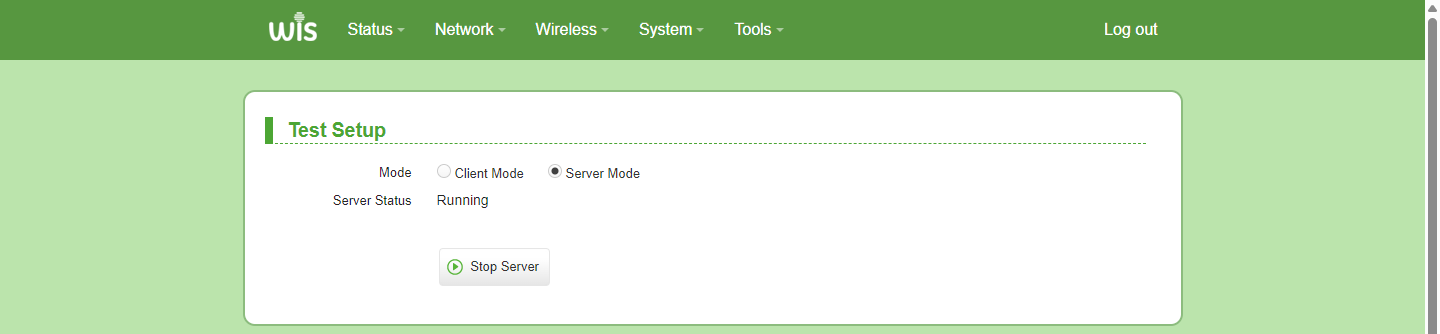
- Select "Packet Size"; "Large (1500 bytes)" is recommended.
- Select "Duration"; "20 seconds" is recommended.
- Select the terminal "Destinations". If there are multiple terminals, select the target destination address from the drop-down list.
- Click "Start Test" to start speed test.Select "Packet Size"; "Large (1500 bytes)" is recommended.
- After the speed test is completed, check the "Downlink", "Uplink" and speed test traffic graph.