Networks
Bridge
Network Mode:Bridge

1. VLAN
VLAN enables logical segmentation of a physical network into isolated subnets to separate traffic and enhance security. The device defaults to Simple Mode, where VLAN is disabled; all ports and wireless clients reside in the same broadcast domain, suitable for standard deployments. Switching to Advanced Mode activates the 802.1Q VLAN feature, allowing you to assign custom VLAN IDs and bind specific Ethernet ports or wireless interfaces to designated VLANs for multi-subnet isolation and granular access control.

AC-Interface
The AC Interface setting determines which network interface (such as br-lan) the device uses to communicate with the AC controller; select the correct interface in Advanced Mode so the device can be discovered, adopted, and centrally managed for unified configuration and monitoring.

VLAN List
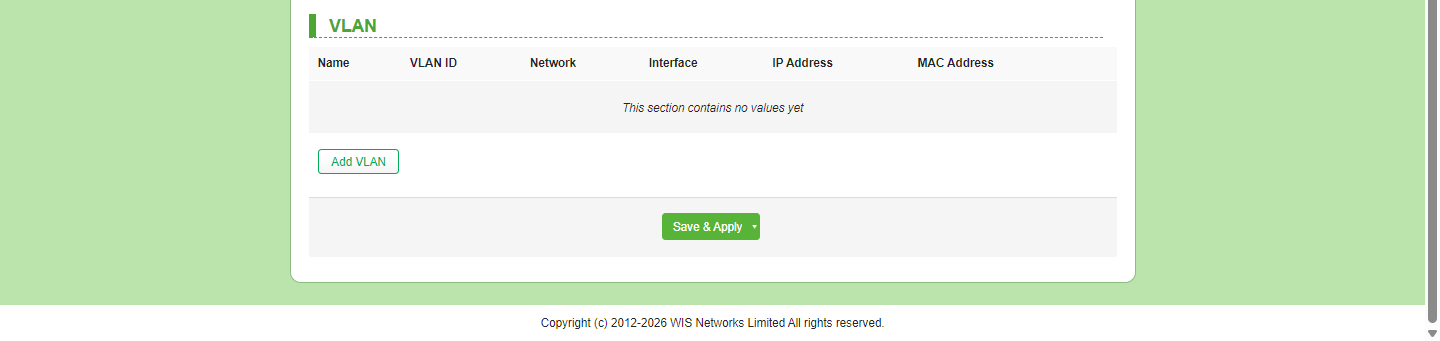
This page displays the configured VLAN interfaces in a list with their Name, VLAN ID, Network, Interface, IP Address, and MAC Address; when no entries exist, click Add VLAN to create a new VLAN interface, then click Save & Apply to activate the configuration.
Add VLAN
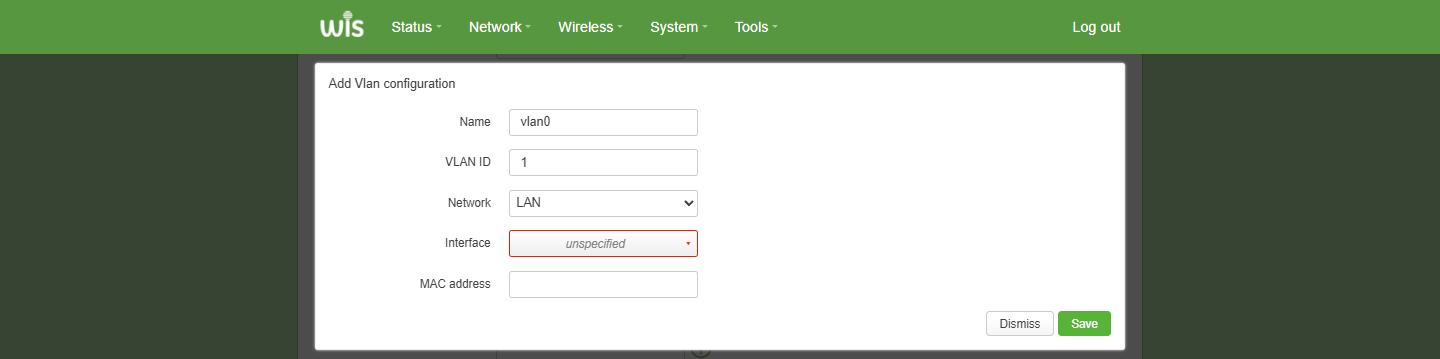
This page is used to create a new VLAN interface. Configure the Name, VLAN ID, Network (e.g., LAN), and Interface bindings in sequence. Note: The Interface field is mandatory; do not leave it as the default "unspecified" state. You must select an available physical or bridged interface before clicking Save to prevent invalid configurations. can be left blank for automatic assignment or set to a custom value as required. After saving, return to the list to configure IP settings, then click Save & Apply to activate the changes.
Parameter Description:
| Parameter | Description |
|---|---|
| Name | VLAN interface identifier. Must not be empty. |
| VLAN ID | VLAN tag identifier. Must not be empty;accepts numeric values only, with a valid range of 1–4094. |
| Network | Logical network zone to which the VLAN belongs. In bridge mode, only LAN is available for selection by default. |
| Interface | Physical or logical port binding for the VLAN.Must be specified; it cannot be left in the default "unspecified" state. select from ETH1, SFP, or WLAN. |
| MAC Address | MAC address for the VLAN interface. May be left empty; the system will auto-generate a MAC address upon saving if no MAC address is manually specified. |
LAN_VLANXX
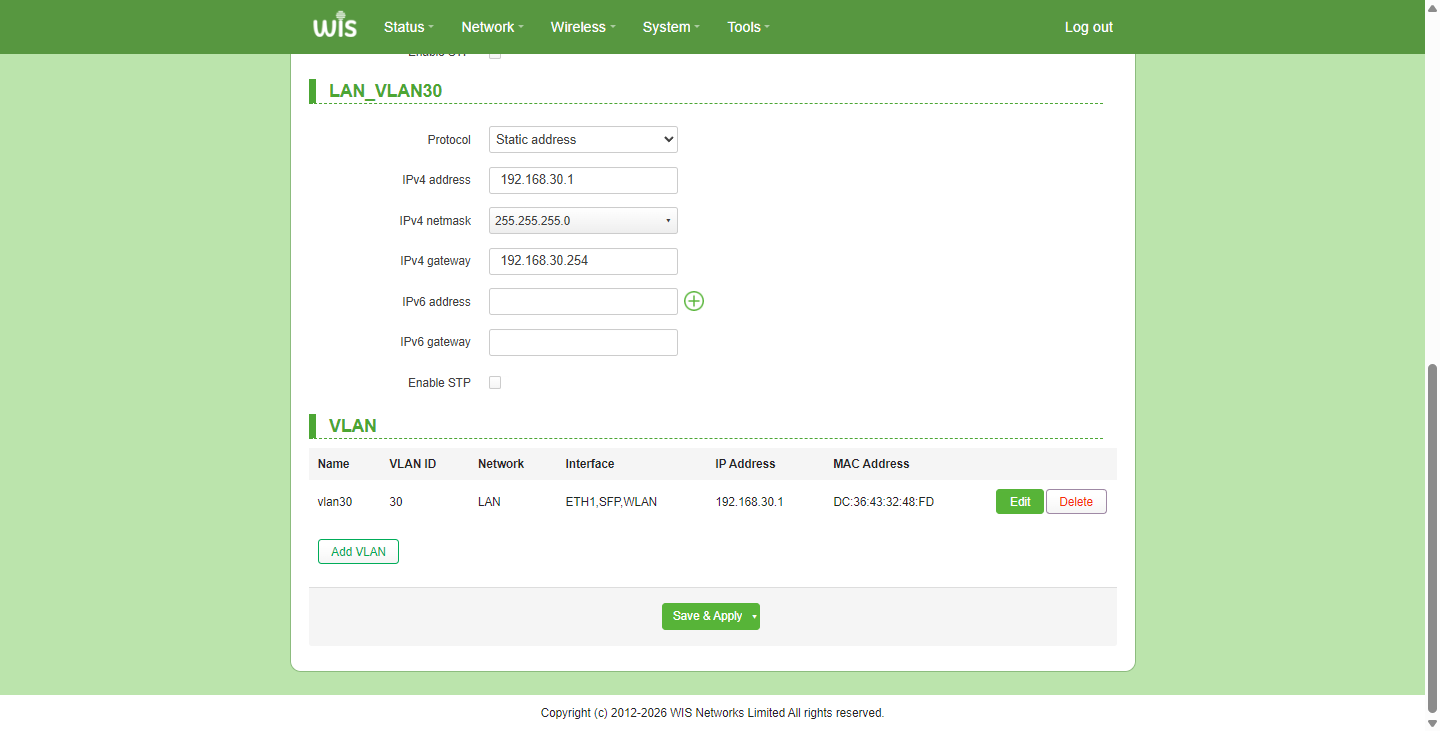
Configure the VLAN interface IP settings (IPv4/IPv6 address, netmask, gateway) as needed, then click Save & Apply. The VLAN list below will automatically synchronize and display the assigned IP Address and MAC Address for the interface, confirming that the Layer‑3 configuration has taken effect.
2. LAN
The Protocol field defines how the LAN interface obtains its IP configuration. Three modes are supported:
Static address — Assign a fixed IPv4 address, netmask, and gateway manually (recommended for stable management access).
DHCP client — Automatically acquire IPv4 parameters from an upstream DHCP server.
DHCPv6 client — Obtain IPv6 addressing information via DHCPv6.
Under the selected protocol, specify the IPv4 address, IPv4 netmask, and IPv4 gateway as needed (required for static mode; ignored or auto-filled when using DHCP client). Add DNS server entries as necessary (use the green “+” to append or red “×” to remove). Adjust MTU only if your network requires a non-standard value (default 1500). Enable STP if spanning-tree loop prevention is required on bridged ports.
Guidance: Choose Static address for predictable LAN management, or DHCP/DHCPv6 client when the device should act as a client to an upstream router. Ensure static IPv4 settings do not conflict with other subnets or the gateway address. After completing the fields, click Save & Apply to activate the configuration.
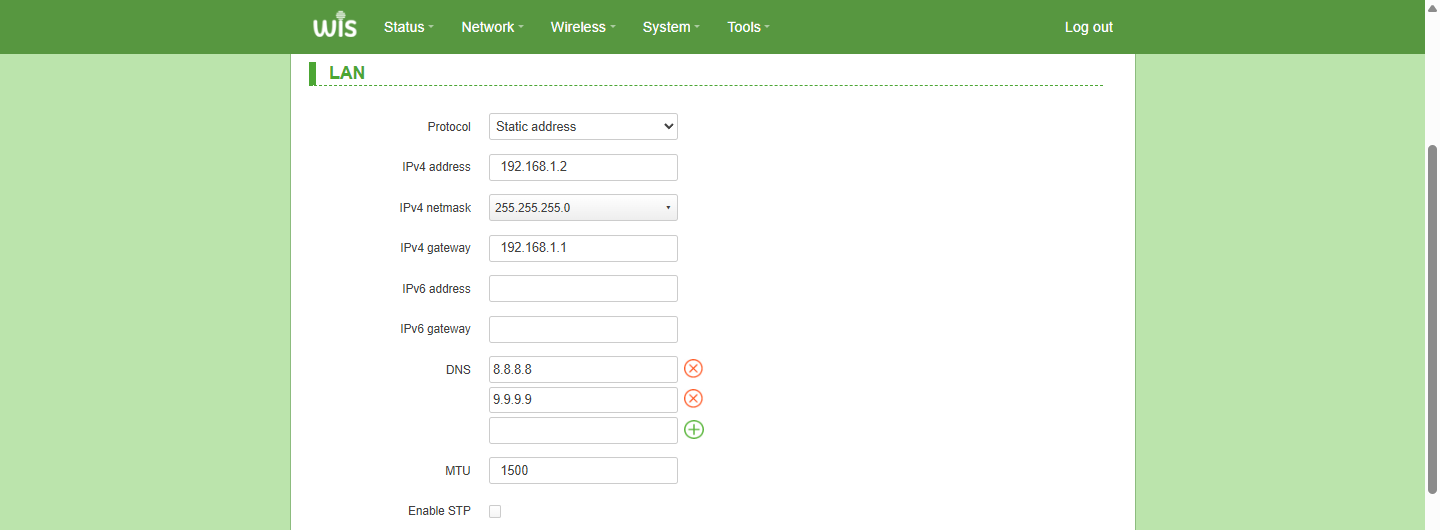
Parameter Description:
| Parameter | Description |
|---|---|
| Protocol | Defines how the LAN interface obtains its IP configuration. Supported modes: Static address (manually assign fixed IP for stable management access), DHCP client (obtain IPv4 settings automatically from an upstream router), and DHCPv6 client (obtain IPv6 addressing via DHCPv6). |
| IPv4 address | Specifies the static IPv4 address for the LAN interface (e.g., 192.168.1.2). Important: Must be unique and must not conflict with other interfaces, VLAN subnets, the upstream gateway, or existing DHCP pools. |
| IPv4 netmask | Defines the subnet mask for the LAN segment (e.g., 255.255.255.0). Important: Must match the subnet mask used by the corresponding gateway and other devices within the same Layer‑3 domain to ensure correct routing. |
| IPv4 gateway | Sets the default gateway for IPv4 traffic egress (e.g., 192.168.1.1). Important:Must reside within the same subnet as the LAN IPv4 address. Verify that it does not overlap with or duplicate another interface’s gateway or IP address. |
| IPv6 address | Configures the static IPv6 address for the interface. Leave blank if the device is obtaining IPv6 addressing via DHCPv6 or not utilizing IPv6. |
| IPv6 gateway | Specifies the default gateway for IPv6 traffic. Ensure this address is consistent with the configured IPv6 prefix when using static assignment. |
| DNS | Defines Domain Name System server addresses (e.g., 8.8.8.8, 9.9.9.9). Use the green “+” button to add entries or the red “×” button to remove them. Ensure configured DNS servers are reachable and appropriate for your network. |
| MTU | Sets the Maximum Transmission Unit size (default: 1500). Adjust this value only when required by your ISP or specific tunneling/encapsulation configurations; incorrect MTU settings may cause packet fragmentation or connectivity loss. |
| Enable STP | Enables the Spanning Tree Protocol on the interface to prevent Layer‑2 loops. Enable this option only in bridged or switched environments with redundant physical paths between network devices. |
Router
Network Mode:Router

1. VLAN
The device supports both Bridge and Router operating modes, with VLAN functionality controlled by the Configuration Mode setting. The default Simple Mode disables VLAN tagging, keeping all ports within a single broadcast domain. Switching to Advanced Mode enables 802.1Q VLAN features; the VLAN creation and configuration logic remains consistent between Router and Bridge modes, allowing you to define VLAN interfaces using the same parameter rules (VLAN ID range 1–4094, binding to ETH1/SFP/WLAN interfaces, etc.) for a unified management experience across operating states.

2. WAN
Configures the device's uplink to an upstream network (ISP or core router). Select the physical Device (ETH1, SFP, or WLAN) and the appropriate Protocol (DHCP, Static, PPPoE, or DHCPv6) to establish Layer‑3 connectivity. This interface serves as the default gateway for outbound traffic and is the primary target for outbound NAT and firewall policies.

WAN Interface Parameters
| Parameter | Description |
|---|---|
| Device | Specifies the physical or logical interface to be used as the WAN uplink. Supported options: ETH1, SFP, and WLAN. Important: The selected interface must not be simultaneously bound to another WAN/LAN bridge, VLAN, or management function; ensure it does not conflict with ports already assigned to other roles or previously used in conflicting bridge/VLAN configurations. |
| Protocol | Defines the address assignment and link protocol for the WAN interface. Options: DHCP client (default; obtains IPv4 address automatically from the upstream ISP or router), Static address (manual fixed IP configuration), DHCPv6 client (IPv6 auto-configuration), and PPPoE (Point-to-Point Protocol over Ethernet for subscriber authentication). Important: When using Static address, the configured IP, gateway, and subnet must not overlap with any existing LAN/VLAN subnet or other interface on the device to avoid routing conflicts; PPPoE credentials and MTU requirements must match ISP specifications. |
| MTU | Sets the Maximum Transmission Unit size for WAN packets (default: 1500). Important: Incorrect MTU values—especially when using PPPoE or tunneling—may cause fragmentation, reduced throughput, or complete loss of connectivity; adjust only if required by your ISP or encapsulation type, and ensure it does not conflict with downstream interface MTU settings. |
3. LAN
Defines the local-side Layer-3 endpoint for downstream clients and internal network services. The configured IPv4 address and netmask establish the device’s management gateway and subnet boundary; MTU controls local packet sizing, while STP (Spanning Tree Protocol) prevents bridging loops when multiple Layer-2 paths exist. Ensure the LAN subnet does not overlap with the WAN or any configured VLAN ranges.

DHCP
1. DHCP Server
Go to Network > Network >Network > "Network Mode: Router", to enable router mode.
The DHCP server can automatically assign IP addresses, network parameters (subnet mask, default gateway, DNS server address), and address leases (assignment, renewal, release) to clients, avoiding manual configuration hassles and errors. If "Network Mode: Bridge", the DHCP server is disabled and hidden by default.
Go to Network > DHCPto enter the settings page.
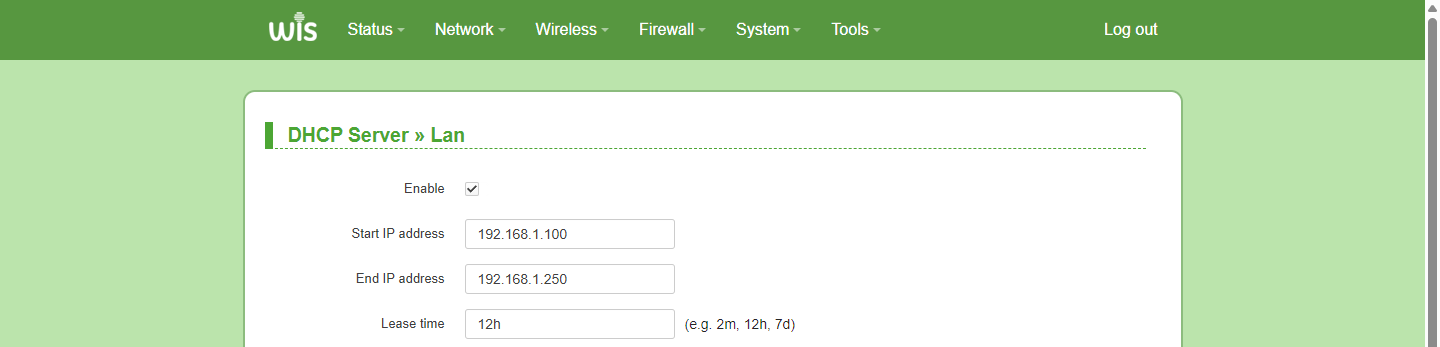
DHCP Server Setup Steps (Default: Enabled):
- Enable: Click "Enable" to start the DHCP server.
- Start IP Address: Set the starting IP address of the IP pool.
- End Address: Set the ending IP address of the IP pool.
- Lease Time: Duration the IP is available to the client.
- Click "Save & Apply" to complete the configuration.
Note: If other DHCP servers exist in this network, ensure the IP addresses set for the bridge's
DHCP server do not conflict with those of other DHCP servers.
Parameter Description:
| Parameter | Description |
|---|---|
| Enable | Enable/Disable the DHCP server. Default: Enabled. |
| Start IP address | Starting IP address of the DHCP server's IP pool. |
| End IP address | Ending IP address of the DHCP server's IP pool. |
| Lease time | Duration the IP address assigned by the DHCP server is available to the client. |
2. Static Lease
Convert dynamically assigned DHCP IP addresses into static addresses. To avoid conflicts, ensure the static IP address is not in use by any client before setting.
- Click "Add".
- Hostname: Custom hostname for identification.
- MAC-Address: Select MAC address from the dropdown list. If the target MAC is not listed, add it manually. If unsure, check the "Assigned DHCP Leases" list.
- IPv4-Address: Assign a specific IP address to this user. Ensure the IP is unused to avoid conflicts.
- Lease time: Specify the available lease duration for the IP. Default: 12h. Other units: m (minutes), h (hours), d (days).
- Click "Save" to save the configuration.
- Click "Save & Apply" to complete the configuration.
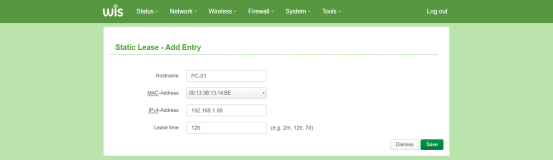
The static lease list displays the static lease rules that have been created.

3. DHCP Leases
Display IP address information obtained by clients from the DHCP server.
Go to Network > DHCP > "Assigned DHCP Leases" to view client information.
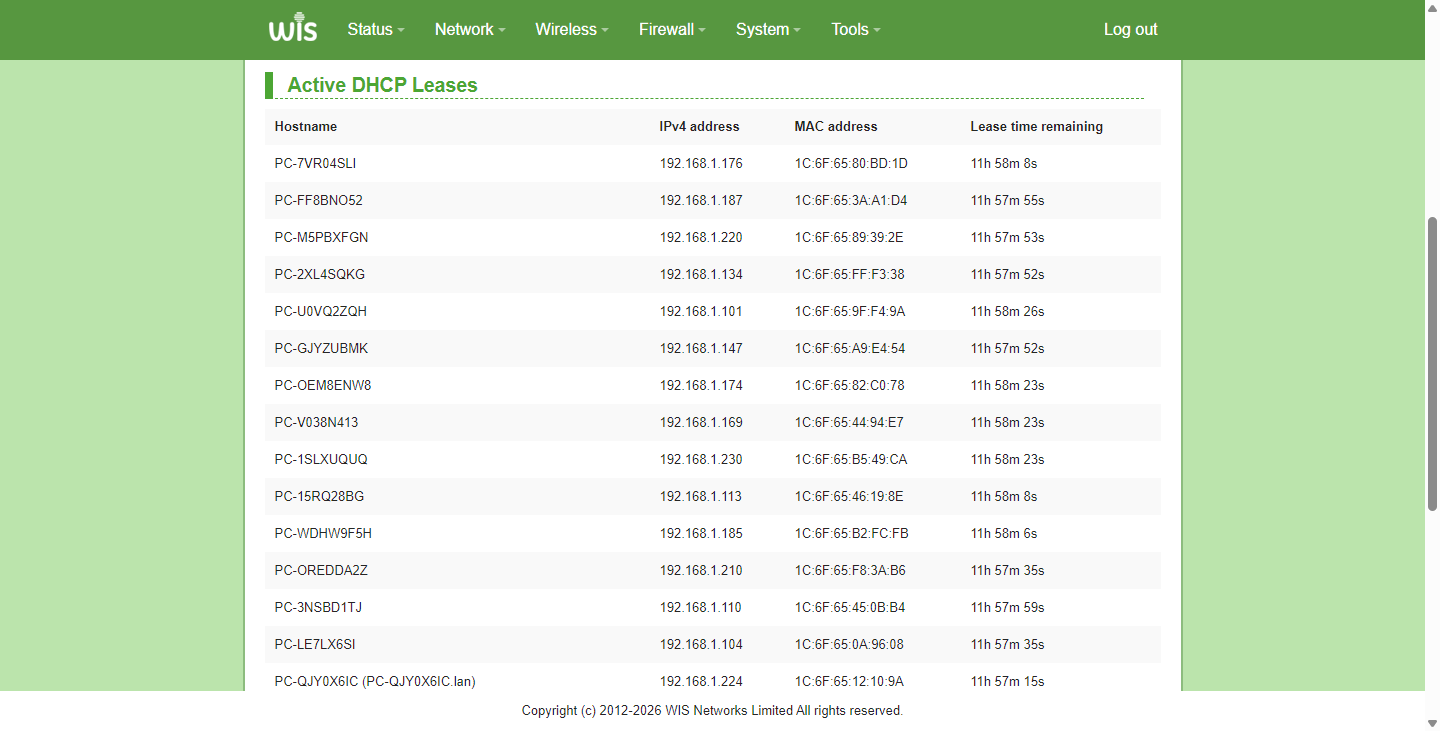

Parameter Description:
| Parameter | Description |
|---|---|
| Hostname | Client host name. |
| IPv4 address | IP address assigned to the client by the DHCP server. |
| MAC address | Physical address of the client. |
| Lease time remaining | Remaining available time for the IP address assigned to the client by the DHCP server. |
Static Routes
Static routing allows administrators to manually define fixed forwarding paths by specifying the target network, subnet mask, outgoing interface, and gateway for precise traffic control, with configurable metric values to set route priority. It is ideal for segregating internal and external networks, enabling inter-VLAN communication, directing traffic flow, and accessing dedicated private networks. Compared to dynamic routing, it offers simplicity, high forwarding efficiency, and zero protocol overhead. The current page shows no configured routes; click "Add Route" to create custom routing rules as needed.
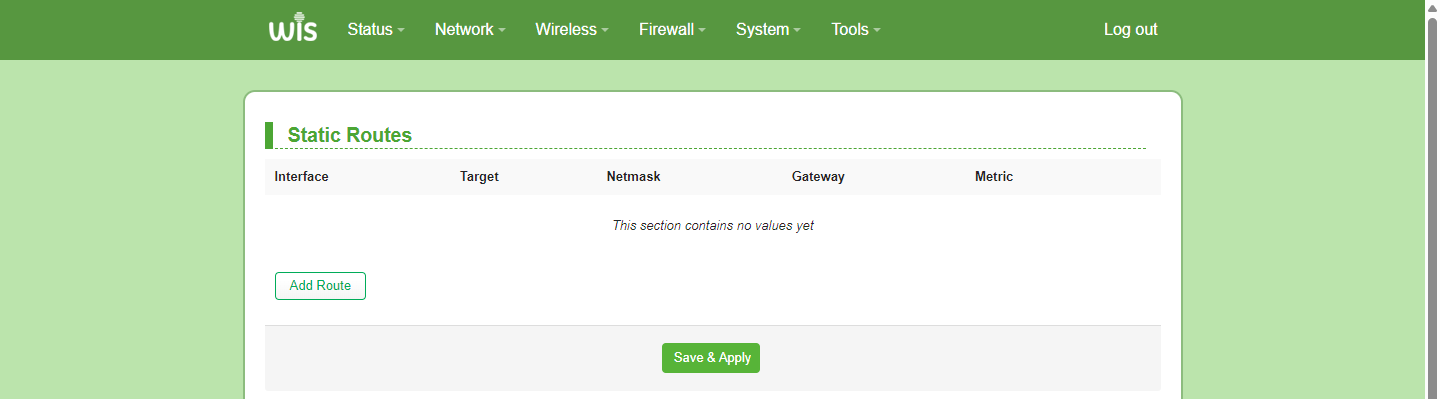
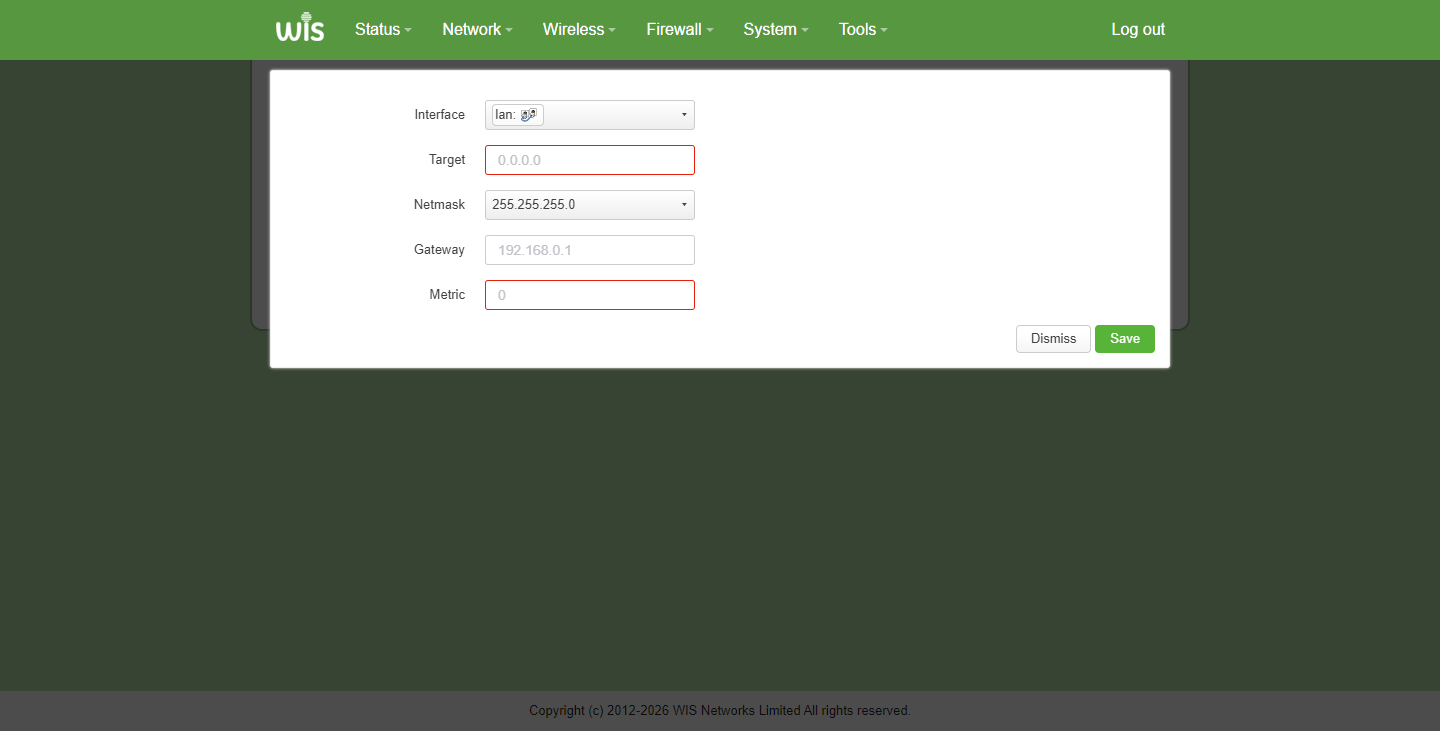
Parameter Description:
| Parameter | Description |
|---|---|
| Interface | Select the local network interface (e.g., lan, wan) used for packet forwarding. This determines which physical or logical port on the device will send out the traffic. |
| Target | The destination IP address or network to be reached. Entering 0.0.0.0 typically represents the default route (i.e., all traffic not matching other rules will follow this path). |
| Netmask | The subnet mask corresponding to the target network. It defines the range of the destination network. Used together with Target to precisely match the intended subnet (e.g., 255.255.255.0 for a standard Class C network). |
| Gateway | The IP address of the next-hop router. Packets will be forwarded to this gateway address for further transmission toward the final destination. |
| Metric | The priority value of the route; a lower number indicates higher priority. When multiple routes exist for the same destination, the system selects the path with the smallest Metric value. |
QoS
QoS (Quality of Service) provides fine-grained control and optimization of network bandwidth through two core mechanisms: "Maximum Rate Limiting" and "Traffic Priority Scheduling."The "Maximum Rate Limiting" feature lets you set customizable download and upload bandwidth caps (in kbps) to prevent any single user or application from monopolizing resources. Meanwhile, the Traffic Priority feature supports user-defined rules via "Add," assigning specific priority levels to different traffic types and detailed characteristics, ensuring that critical services (e.g., video conferencing, voice calls) always receive preferential forwarding during network congestion. This guarantees a smooth experience for core applications and maintains efficient, stable network operation.
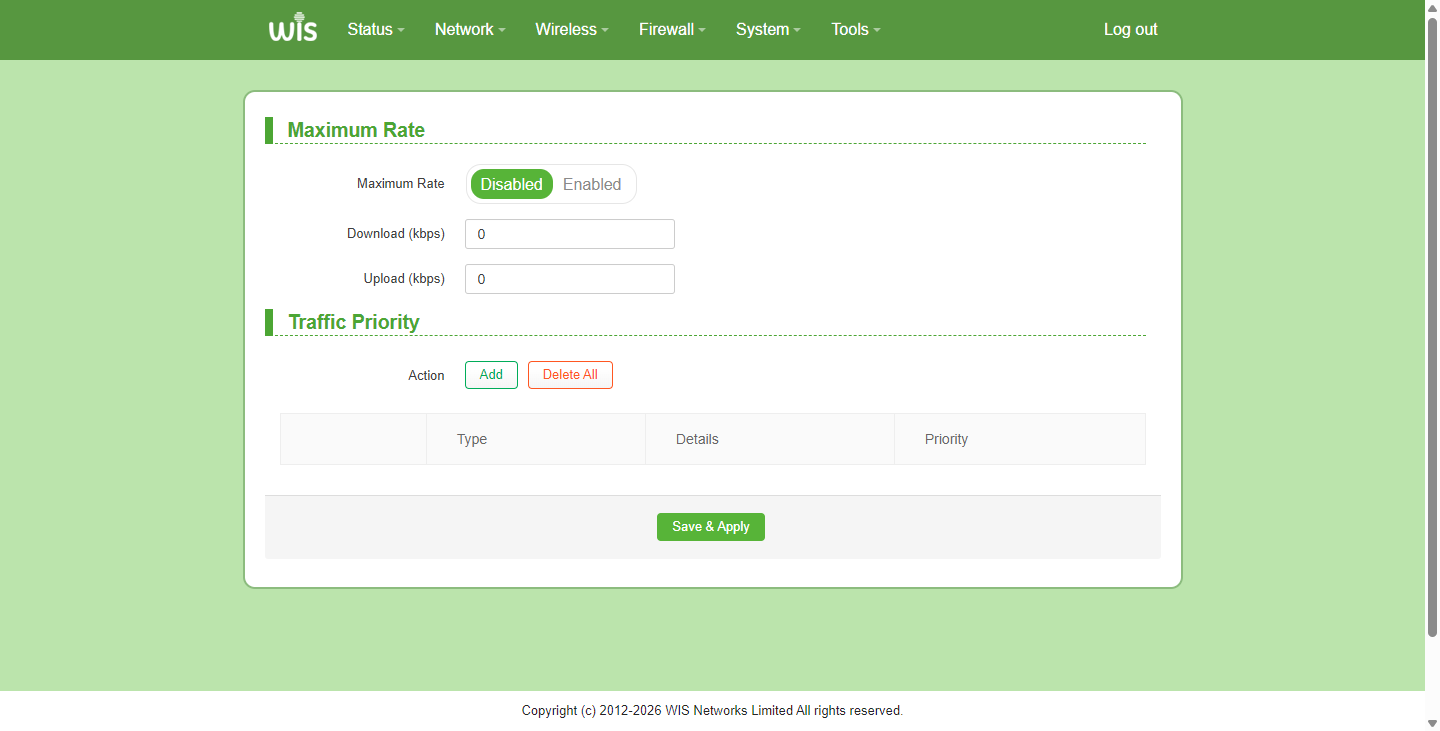
**Parameter Description: **
| Parameter | Description |
|---|---|
| Maximum Rate | QoS function switch button. Default: Off. |
| Download(kbps) | Enable QoS function, specify download data transfer rate for the device. |
| Upload(kbps) | Enable QoS function, specify upload data transfer rate for the device. |
TR069
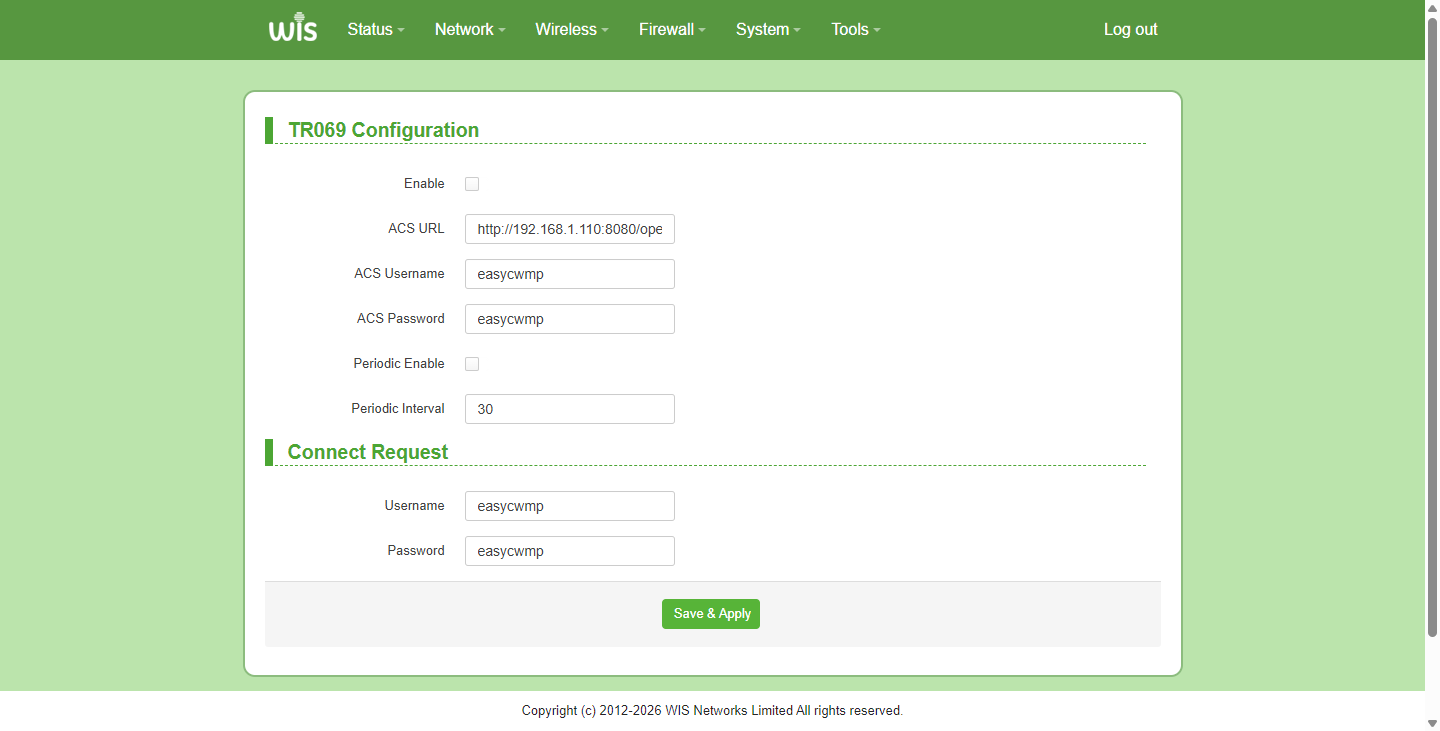
CPE WAN Management Protocol: The network management protocol is used to enable service providers (SPs) to remotely manage and configure user-side equipment (CPE, such as routers, optical modems, set-top boxes, etc.). It is widely used in broadband, Internet of Things and other scenarios.
SNMP
SNMP(Simple Network Management Protocol)is a standard protocol for managing devices in IP networks (such as routers, switches, servers, printers) and is an application layer protocol. It monitors and manages network devices through the network management system (NMS) to implement functions such as device status query, configuration management, performance statistics, and fault alarms.