Firewall
General Settings
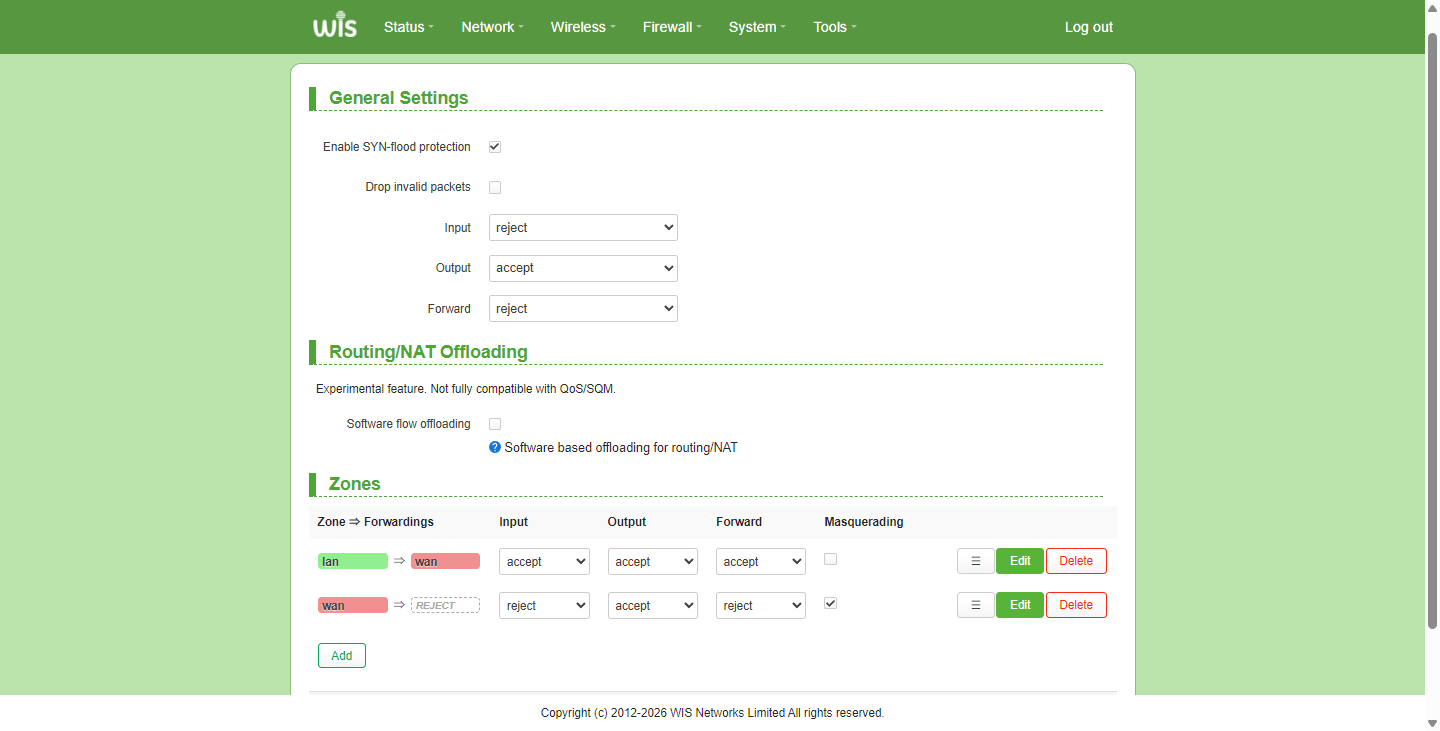
The General Settings page is used to configure basic firewall policies and security protection features. On this page, you can enable common attack defense mechanisms such as SYN-flood defense, and define how the system handles invalid packets. In addition, you can set the default response actions (accept or reject) for inbound, outbound, and forwarding traffic respectively, thereby establishing a basic access control boundary. Combined with the zone configuration below, this module helps you effectively control data interaction between different network zones, ensuring a secure and stable network environment.
Port Forwards
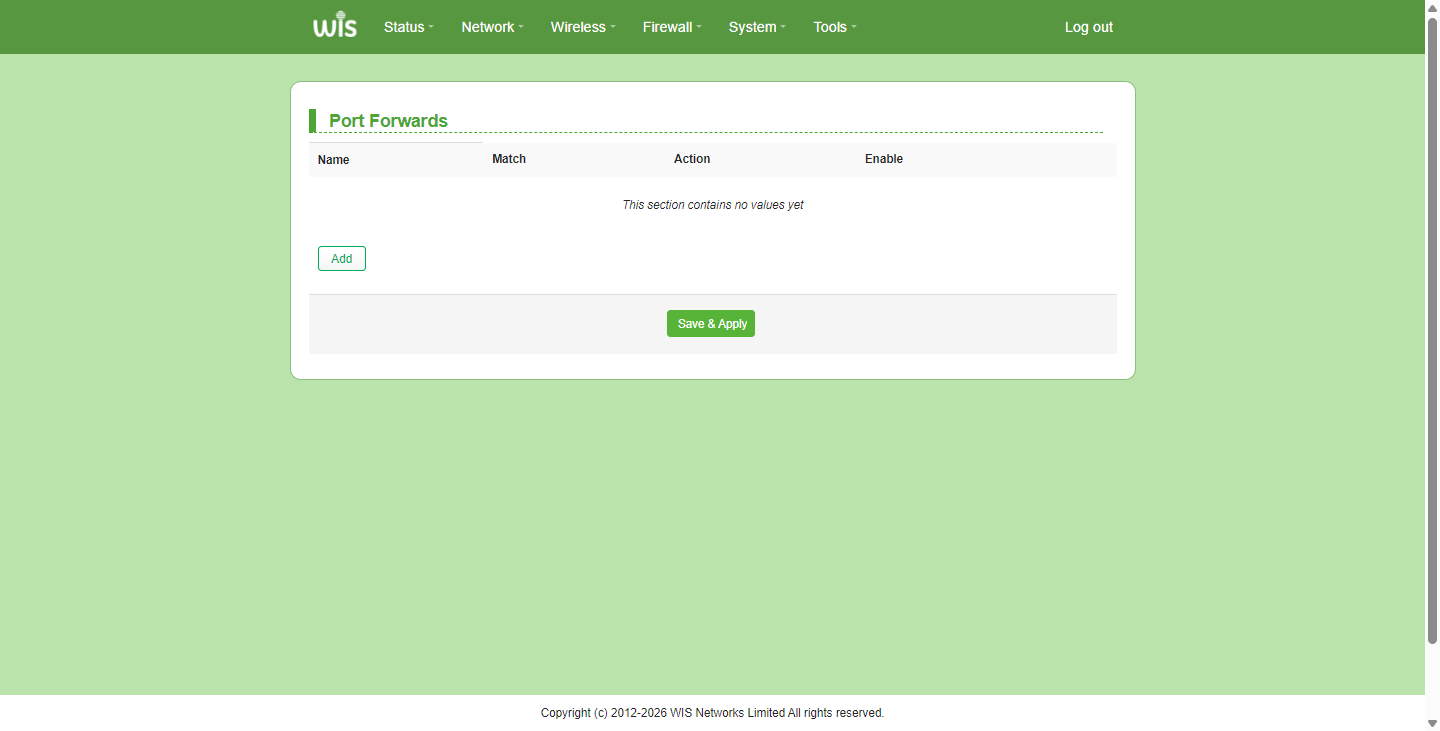
Generally speaking, hosts in the WAN cannot actively access hosts in the LAN. Port forwarding enables WAN users to access the LAN host while protecting the internal LAN from intrusion. Port forwarding defines a service port and specifies its corresponding LAN server via IP address. The device directs service requests from the WAN for this port to that server.
Click Firewall > Port Forwards to enter this page.
Parameter Description:
| Parameter | Description |
|---|---|
| Name | The name of this port rule. |
| Match | Forward the matching rules from the WAN. If the service protocol type is uncertain, it is recommended to use TCP/UDP. |
| Action | Forward the messages of the WAN to the designated address within the LAN. |
| Enable | Enable/Disable this port forwarding rule. |
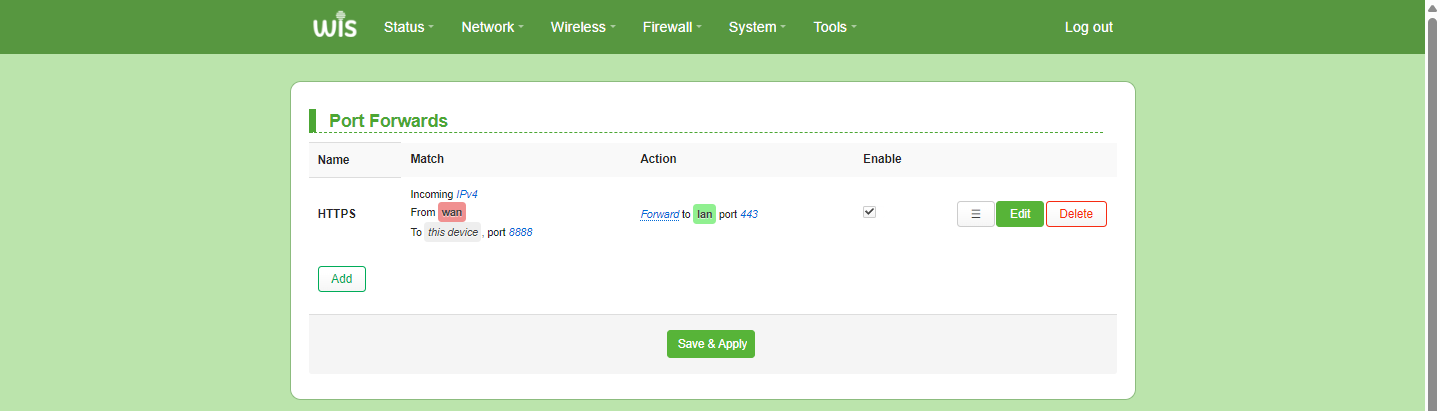
Port Forwarding Rule Example: Establish the network structure with the bridge and set the working mode to routing mode. The WAN port IP address of the device is: 192.168.11.100. When the network administrator is on a business trip and needs to access the device page to modify the configuration, this can be achieved through port forwarding rules. First, create the rule on the port forwarding page.
Note:
▪ Ensure the bridge WAN port has obtained a public IP address.
▪ If the bridge WAN port IP is dynamic, be prepared in advance.
▪ System firewalls, some antivirus software, and security guards may prevent other computers from accessing the server. It is recommended to temporarily disable them before using this function.
Step 1. Create port forwarding and add it successfully as follows:
Step 2. Internet users access the bridge management interface.
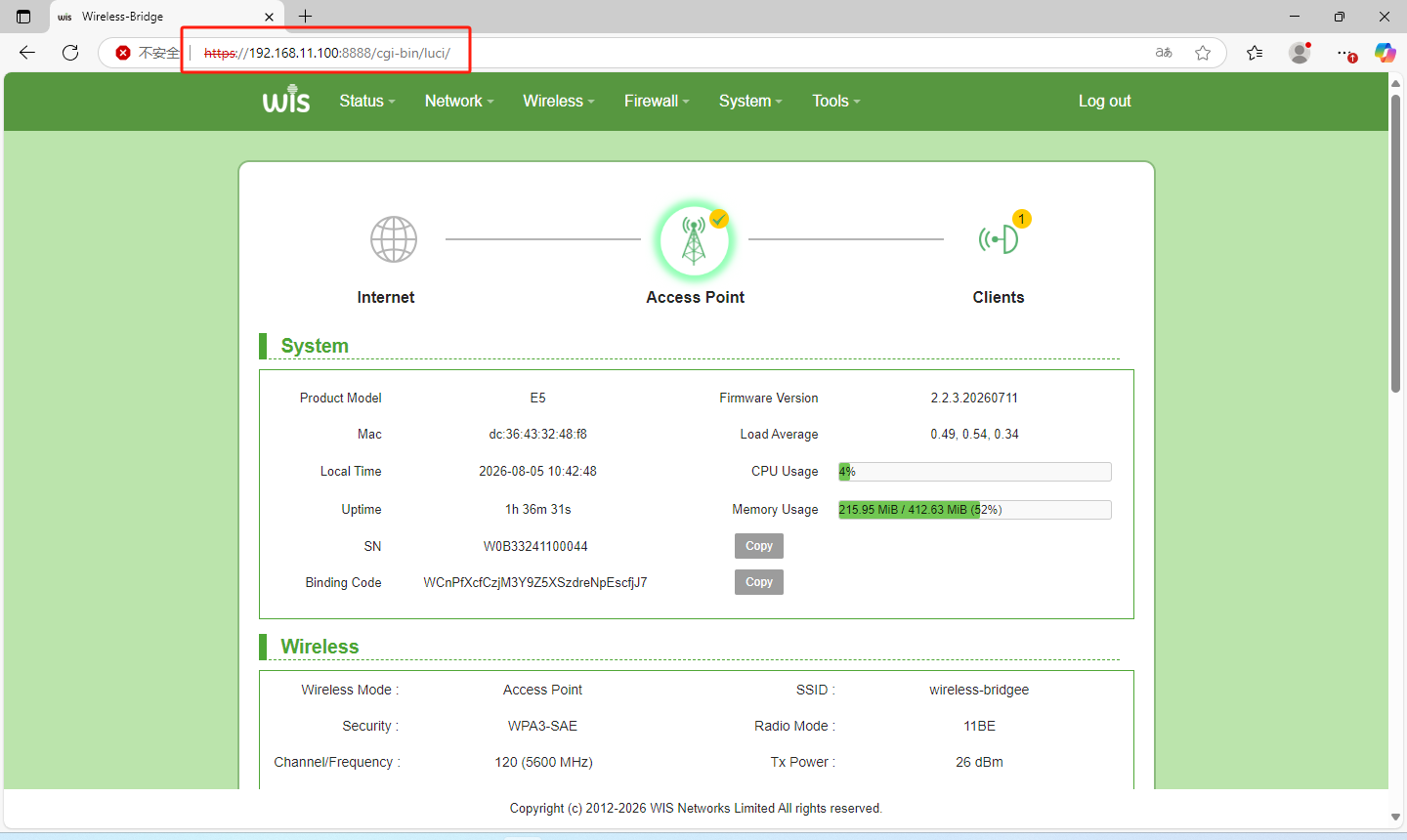
When Internet users access the intranet management interface, they only need to visit: https://192.168.11.100:8888 on a computer that has obtained a public IP address.
Note:
▪ The "external interface" of the port forwarding rule cannot be the same as the "port number" of the remote WEB access, which will cause a conflict and lead to port forwarding failure.
▪ After setting the rule, Internet users can access it in the form of "protocol name://bridge wan port IP address: external interface".
Traffic Rules
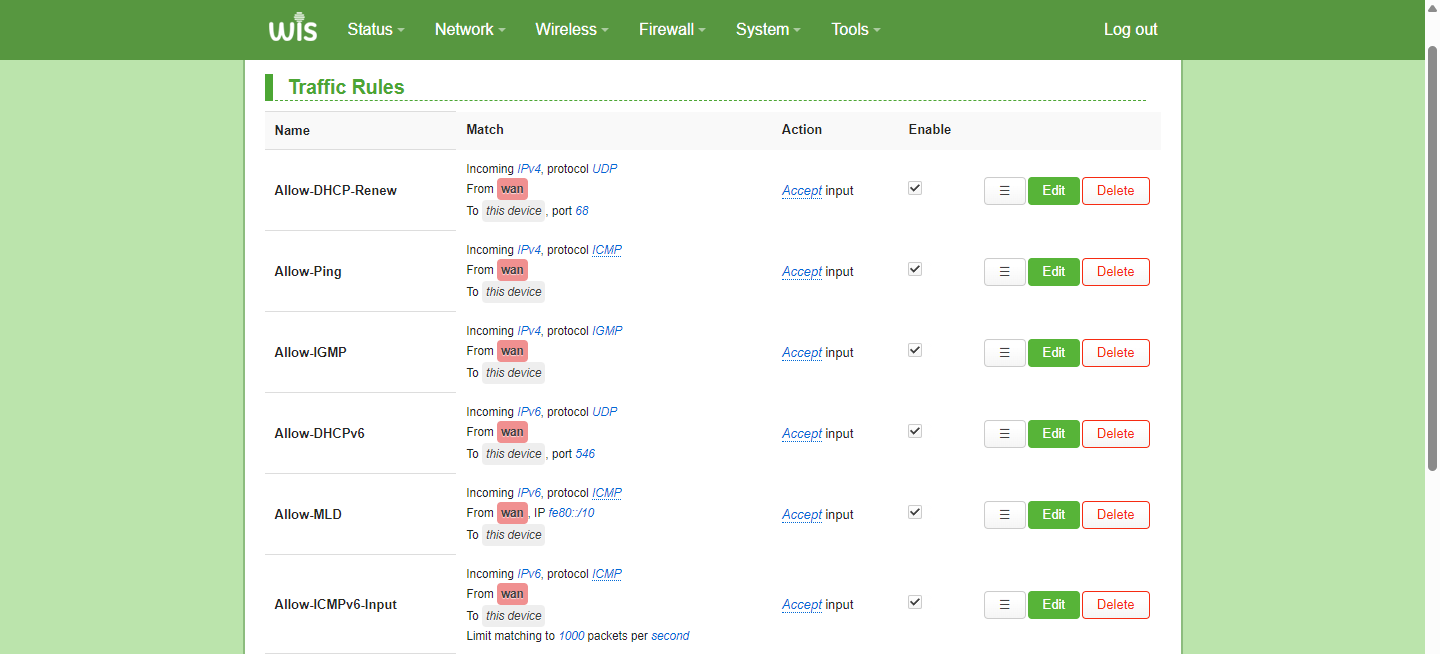
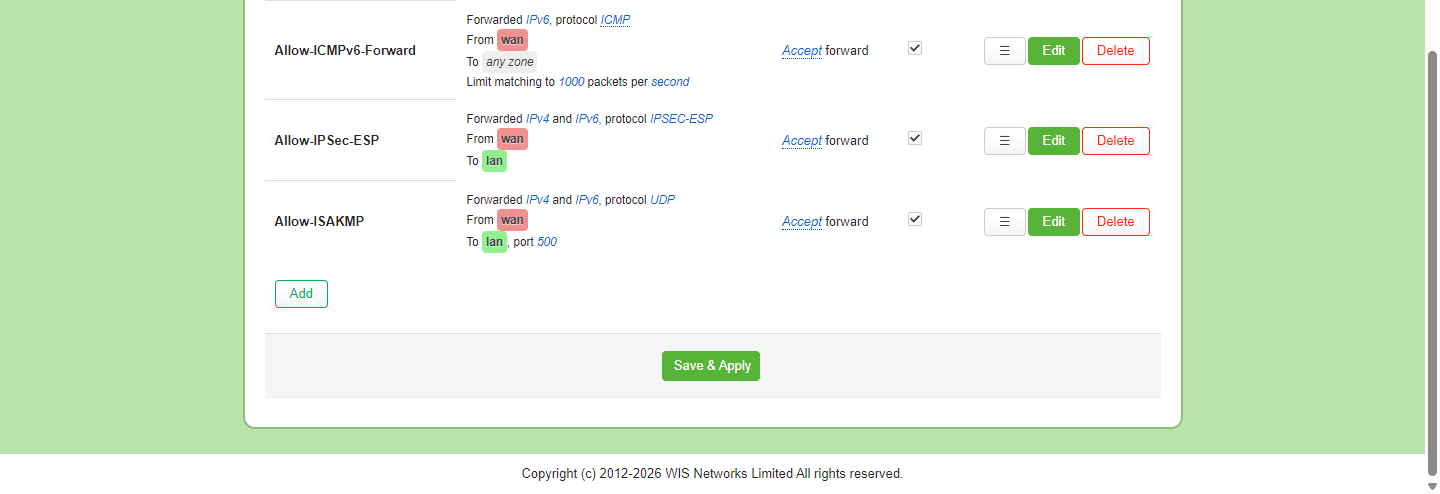
The Traffic Rules page allows you to define matching conditions and actions for firewall handling of specific traffic. Here you can view, add, or edit rules based on protocol type (e.g., UDP, ICMP, IGMP), source/destination zones (e.g., wan to this device), ports, and IPv4/IPv6 parameters, with actions such as accept, reject, or rate limiting, thereby achieving granular access control and security protection.
NAT Rules
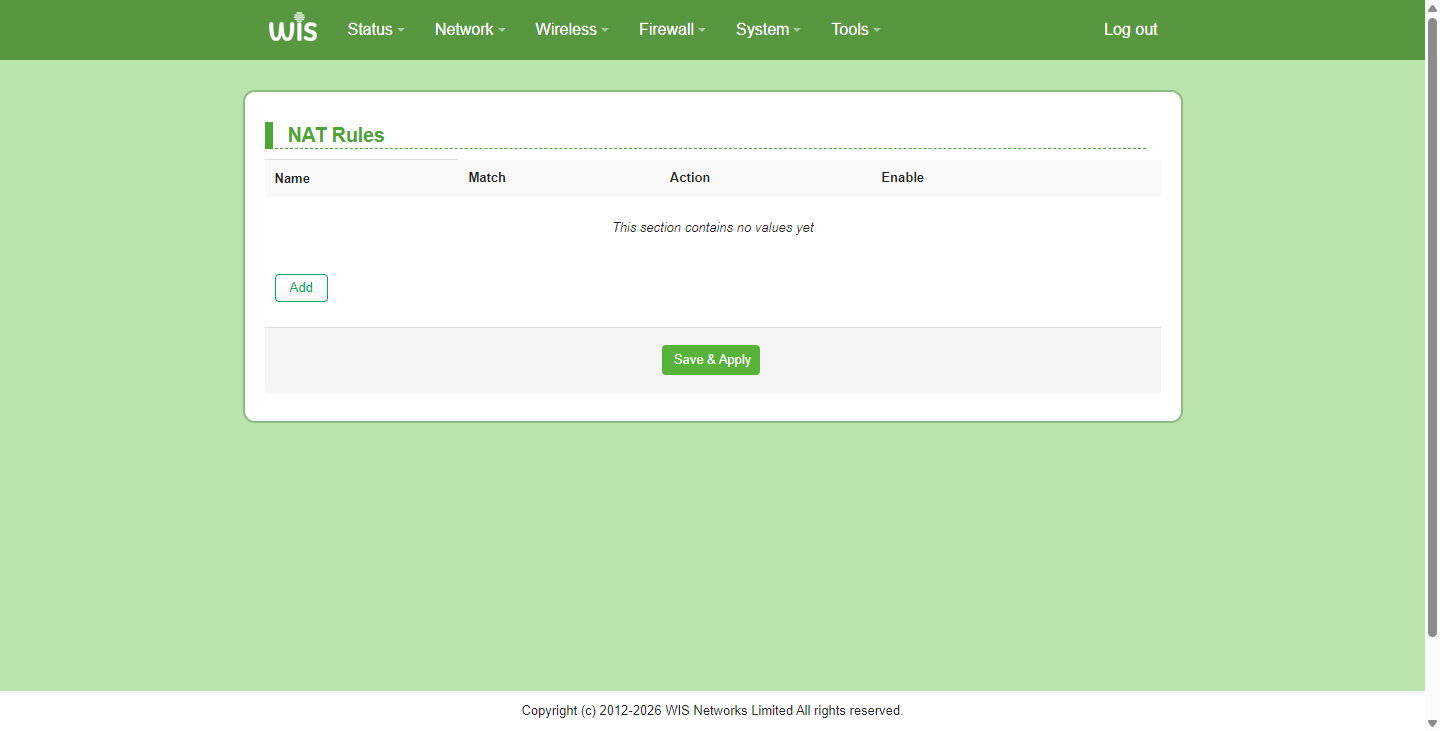
The NAT Rules page is used to configure Network Address Translation policies, such as Source NAT (SNAT), port forwarding, and address rewriting, to manage traffic forwarding and IP mapping between internal and external networks. Here you can add or edit rules by specifying the protocol, outbound zone, source/destination addresses, and rewrite IP address. Click Save & Apply to activate the settings and control data traffic between private and public networks.