Behavior
Time Management
Time Management is used to create and manage time schedule policies, supporting add, search, delete, and viewing of time names and work times, providing time conditions for behavior control, user management, website or application control policies, and facilitating scheduled network management rules.
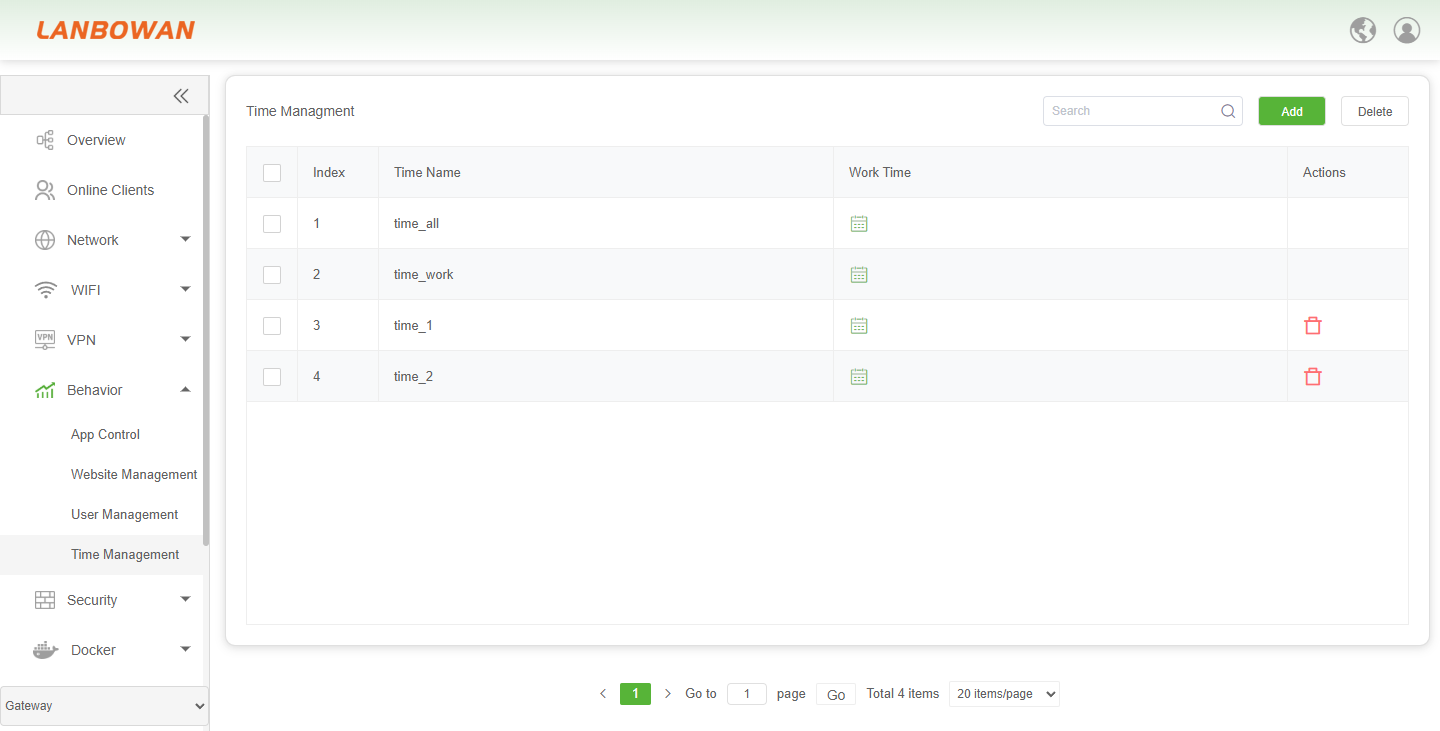
Parameter Description:
| Parameter | Description |
|---|---|
| Index | Sequential number identifying the time schedule entry. |
| Time Name | Name or identifier of the configured time policy/schedule. |
| Work Time | Configured effective time range/period for the schedule. |
| Actions | Available operation(s) for the entry, such as delete. |
| Search | Filter time management entries by keyword. |
| Add | Create a new time schedule entry. |
| Delete | Remove selected time management entry(s). |
Add Time Rules
Add Time Rules is used to create time rules by setting a time name, selecting effective weekdays (all or specified Monday to Sunday), and adding multiple start/end time segments, which can be saved and referenced by behavior control, user management, website or application control policies based on schedules.
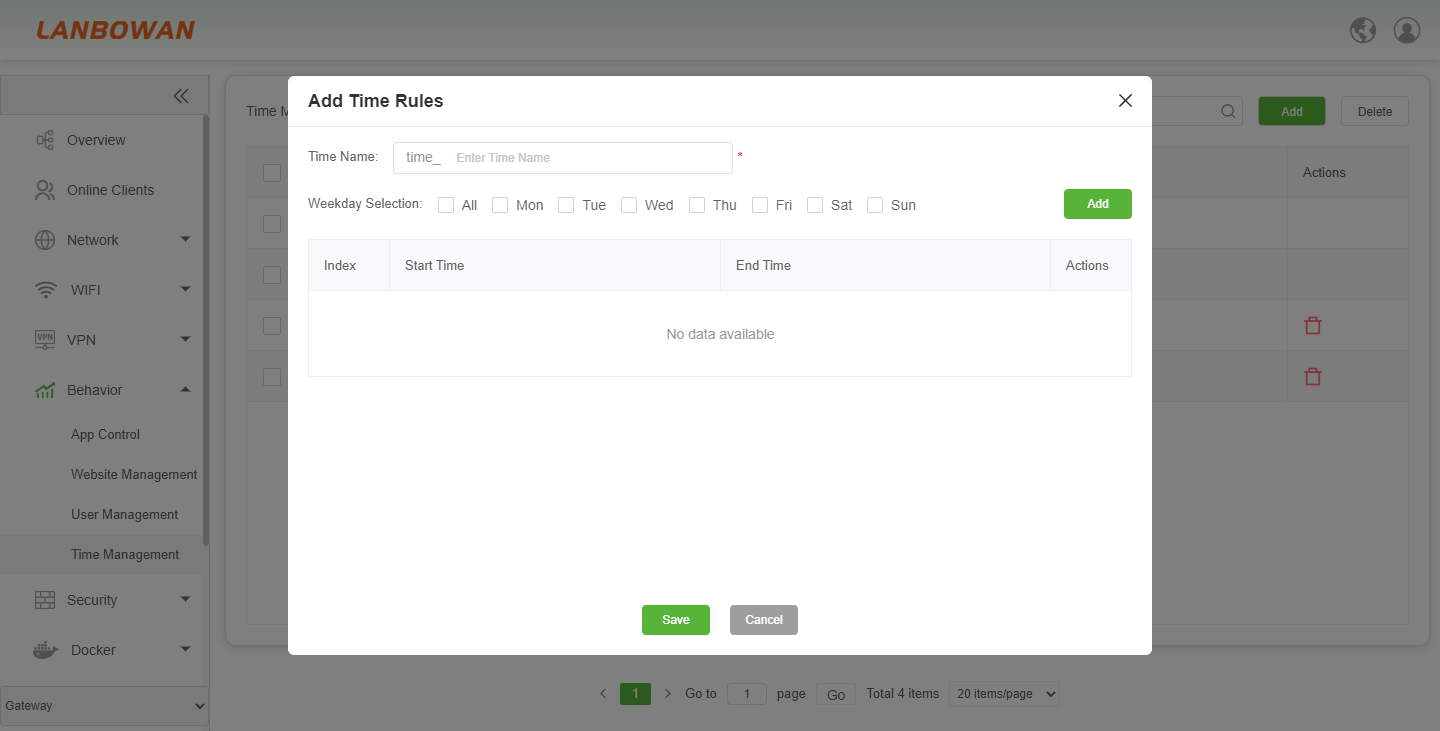
Parameter Description:
| Parameter | Description |
|---|---|
| Time Name | Name identifier for the time rule, required when creating the rule. |
| Weekday Selection – All | Select all days of the week as effective days. |
| Weekday Selection – Mon/Tue/Wed/Thu/Fri/Sat/Sun | Select specific weekdays as effective days for the time rule. |
| Add | Add the configured start time and end time segment to the list. |
| Index | Sequential number identifying each time segment entry. |
| Start Time | Beginning time of the effective time segment. |
| End Time | Ending time of the effective time segment. |
| Actions | Operation available for the time segment entry, such as delete/edit. |
| Save | Save the configured time rule and apply it to the system. |
| Cancel | Discard changes and close the current configuration window. |
User Management
User Management is used to manage system users/user groups, supporting grouping and binding by name and MAC address, search, add, edit, delete and batch operations, and can be combined with time policies and behavior control policies to implement user-based access control and network usage policy management.
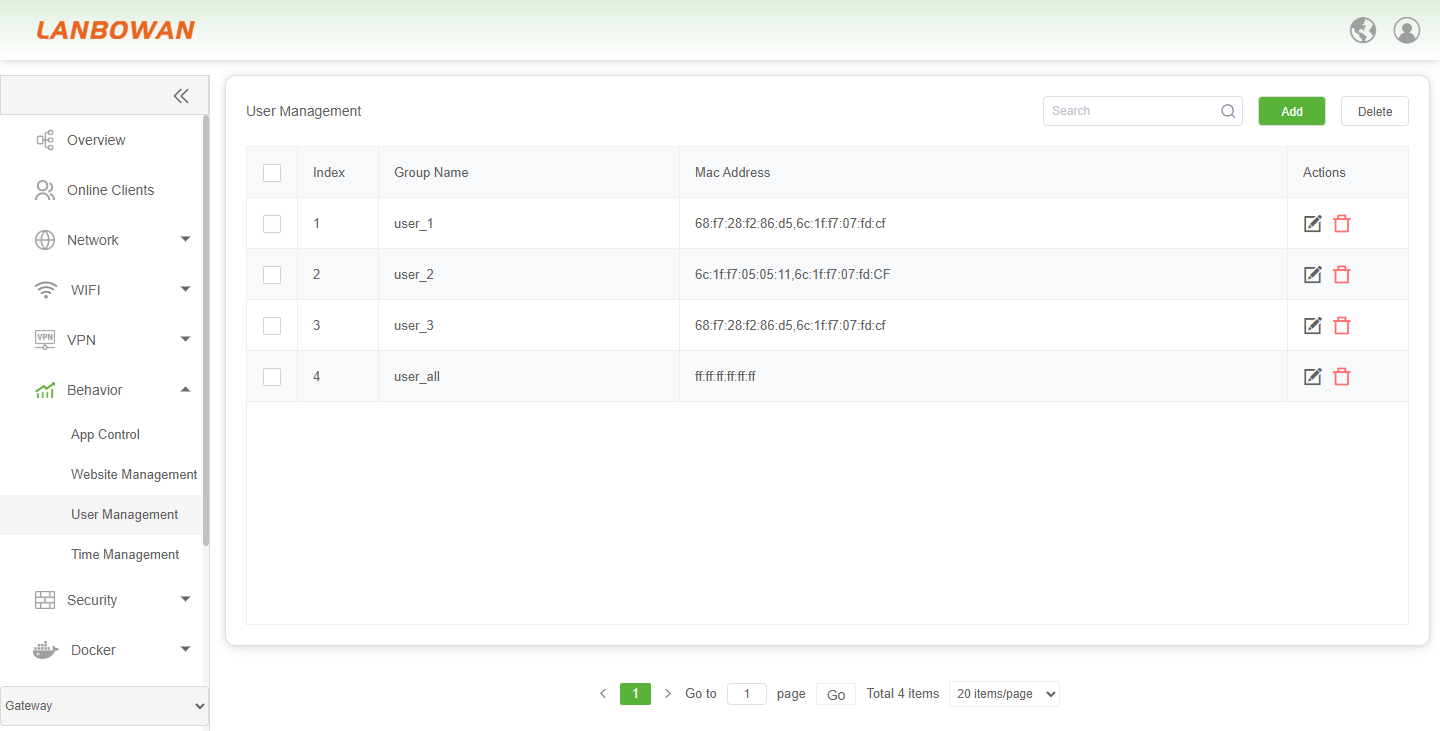
Parameter Description:
| Parameter | Description |
|---|---|
| Index | Sequential number identifying each user/group entry in the list. |
| Group Name | Name identifier of the user group used for policy association and management. |
| Mac Address | MAC address or MAC address list bound to the user group for identification and control. |
| Actions – Edit | Icon button to modify the configuration of the selected user/group entry. |
| Actions – Delete | Icon button to remove the corresponding user/group entry. |
| Search | Search box used to filter user/group entries by keyword such as group name or MAC address. |
| Add | Button to create a new user group entry and configure its name and MAC address binding. |
| Delete | Button to remove selected user/group entries in batch. |
| Checkbox | Selection box used to select one or multiple entries for batch operations. |
Add Group
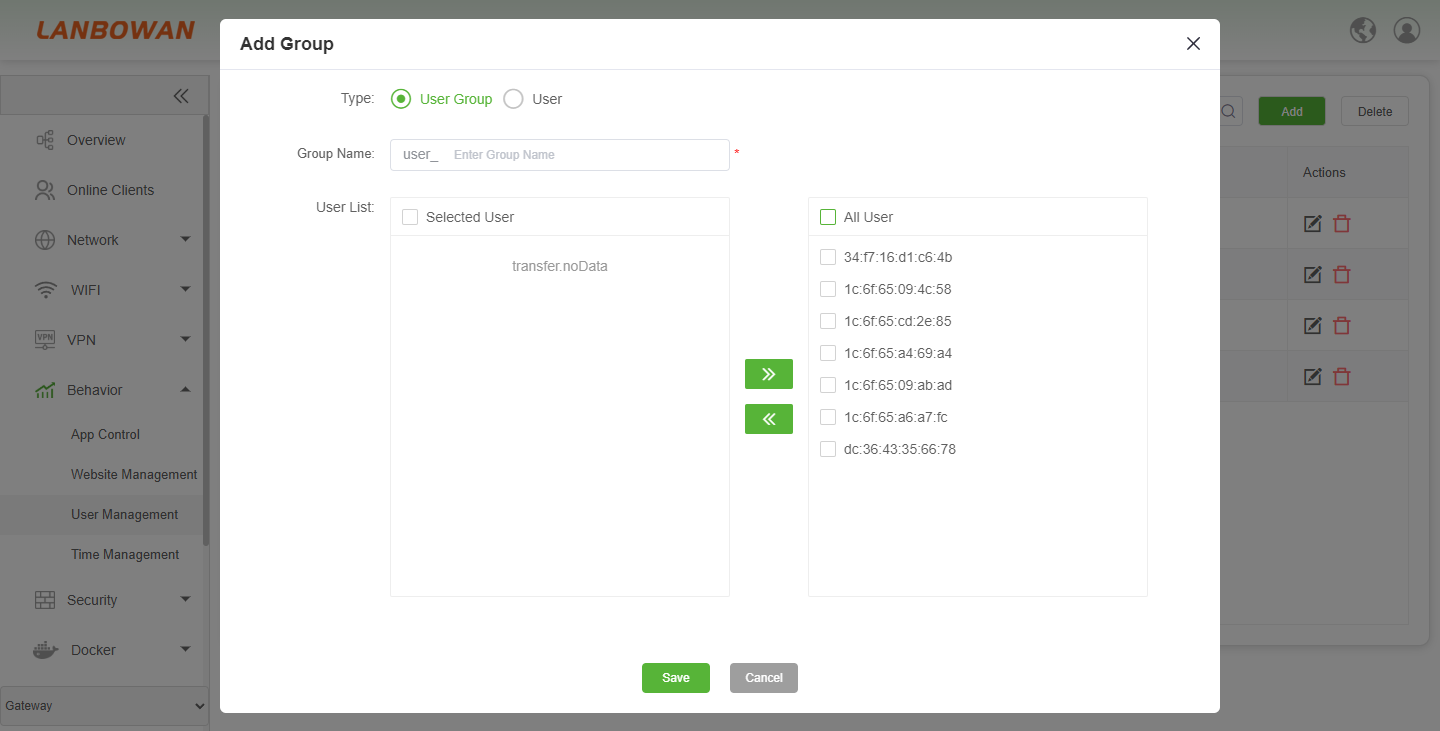
User Group
Add Group is used to create a user group or user entry, supporting type selection (user group/user) and group name configuration, and allowing members to be selected, added or removed from the available user list to bind corresponding terminal identifiers; after saving, it is used for user classification and subsequent behavior, access or time-based policy control.
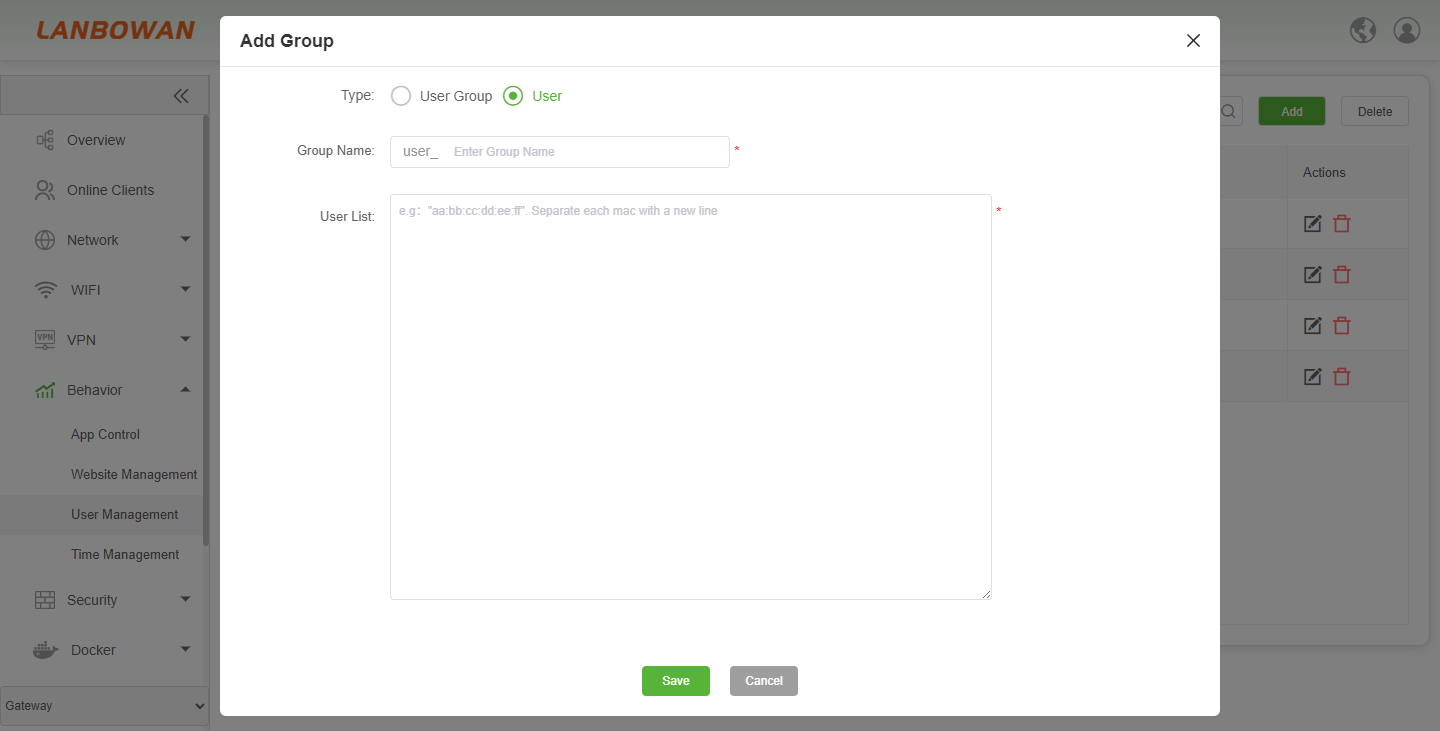
Add User
Add Group in User mode is used to create a user entry by setting the name and entering MAC addresses in bulk line by line, which is then saved as a user object for user classification, behavior control, access policy and time-based policy reference.
Website Management
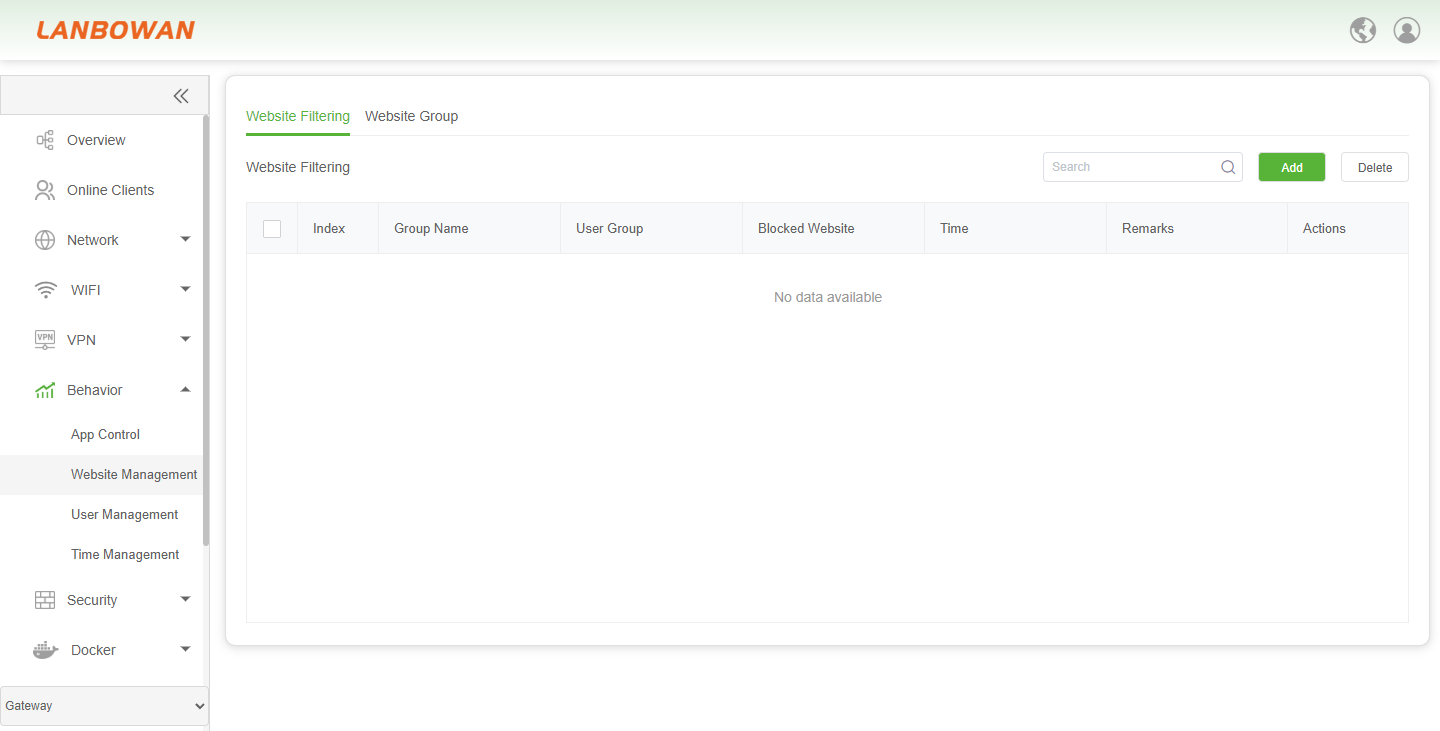
Website Filtering
Website Management is used to configure website filtering and website group policies, supporting management of blocked website rules by user group, effective time and remarks, with search, add, edit and delete operations to control and manage web access behavior.
Parameter Description:
| Parameter | Description |
|---|---|
| Index | Sequential number identifying each website filtering rule entry in the list. |
| Group Name | Name identifier of the website filtering policy/group for rule management. |
| User Group | User group associated with the filtering rule to apply access restrictions to specific users. |
| Blocked Website | Website address or domain configured to be blocked by this rule. |
| Time | Effective time or schedule when the website blocking rule is applied. |
| Remarks | Text description or comment for the rule to facilitate identification and management. |
| Actions | Operation buttons for editing or deleting the corresponding rule entry. |
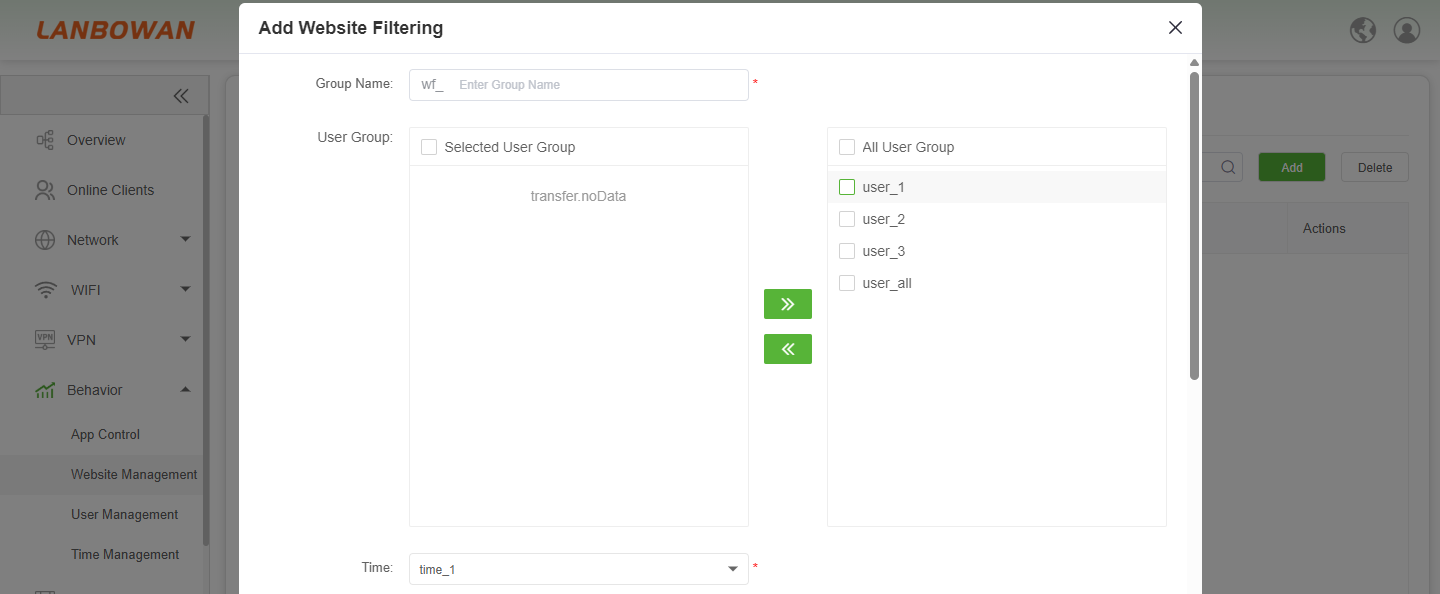
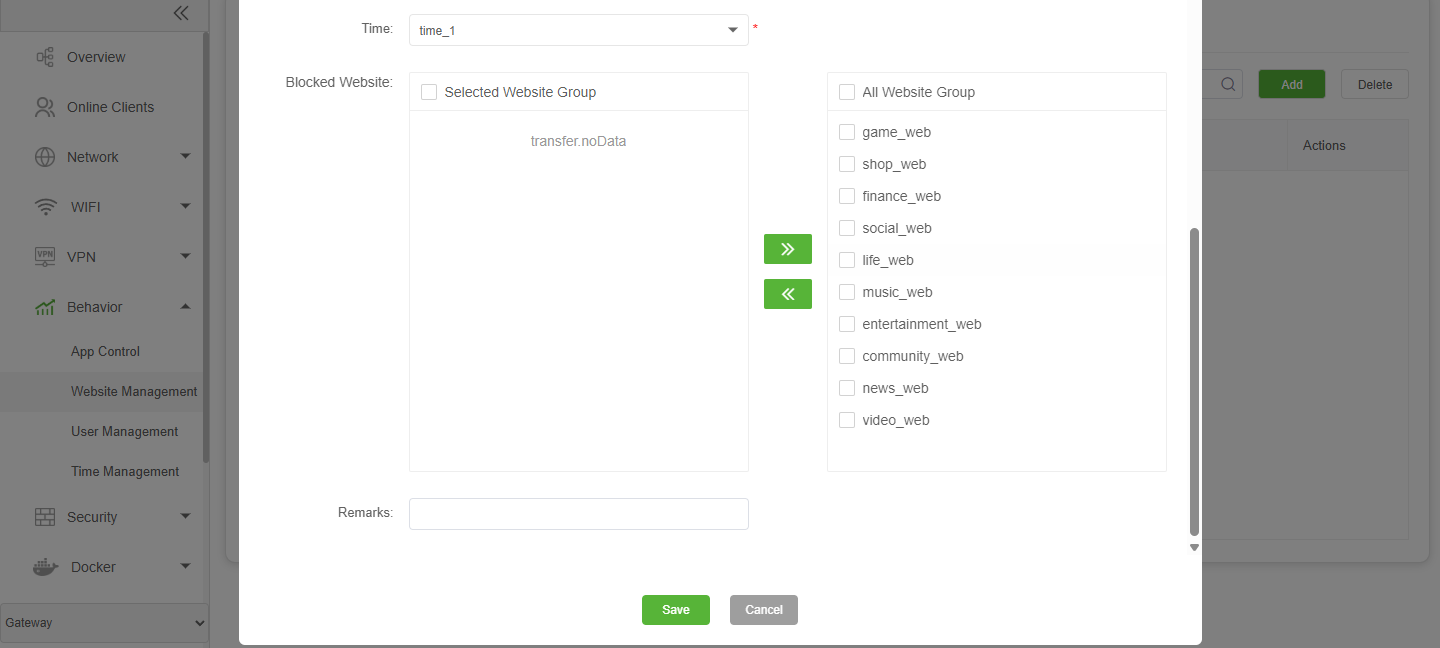
Add Website Filtering
Add Website Filtering is used to add website filtering rules by configuring the policy group name, associating user groups, selecting effective time schedules and website groups to be blocked, with remarks supported, and saving to control website access based on user groups and time policies.
Configuration Steps
- Enter the Group Name to identify this website filtering rule.
- In the User Group area, check target user groups from the right list and click “<<” to move them to the selected list on the left; to remove, check items on the left and click “>>”.
- Select Time to specify the schedule when the filtering rule takes effect.
- In the Blocked Website area, check website categories from the right list and click “<<” to add them to the selected list on the left; to remove, check items on the left and click “>>”
- Fill in Remarks as needed to describe the purpose of the rule.
- Click Save to apply the configuration, or click Cancel to discard the changes.
Website Group
Add Website Filtering is used to add website filtering rules by configuring the policy group name, associating user groups, selecting effective time schedules and website groups to be blocked, with remarks supported, and saving to control website access based on user groups and time policies.
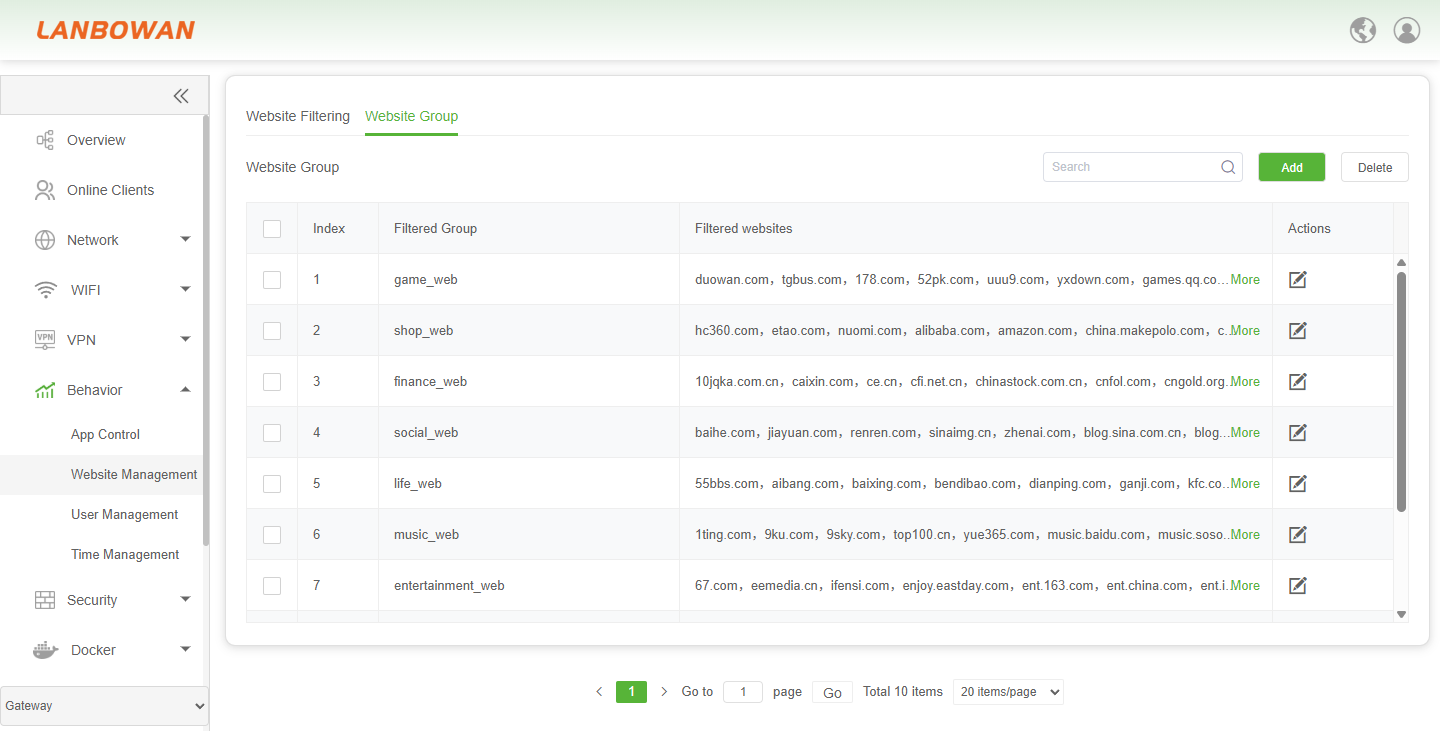
Parameter Description:
| Parameter | Description |
|---|---|
| Index | Sequential number identifying each website group entry in the list. |
| Filtered Group | Name of the website category/group used to classify filtered websites. |
| Filtered websites | Domain or website list included in the group, with “More” to expand and view the full list. |
| More | Link to expand and display the complete filtered website list for the group. |
| Actions | Edit button for modifying the selected website group and its filtered websites. |
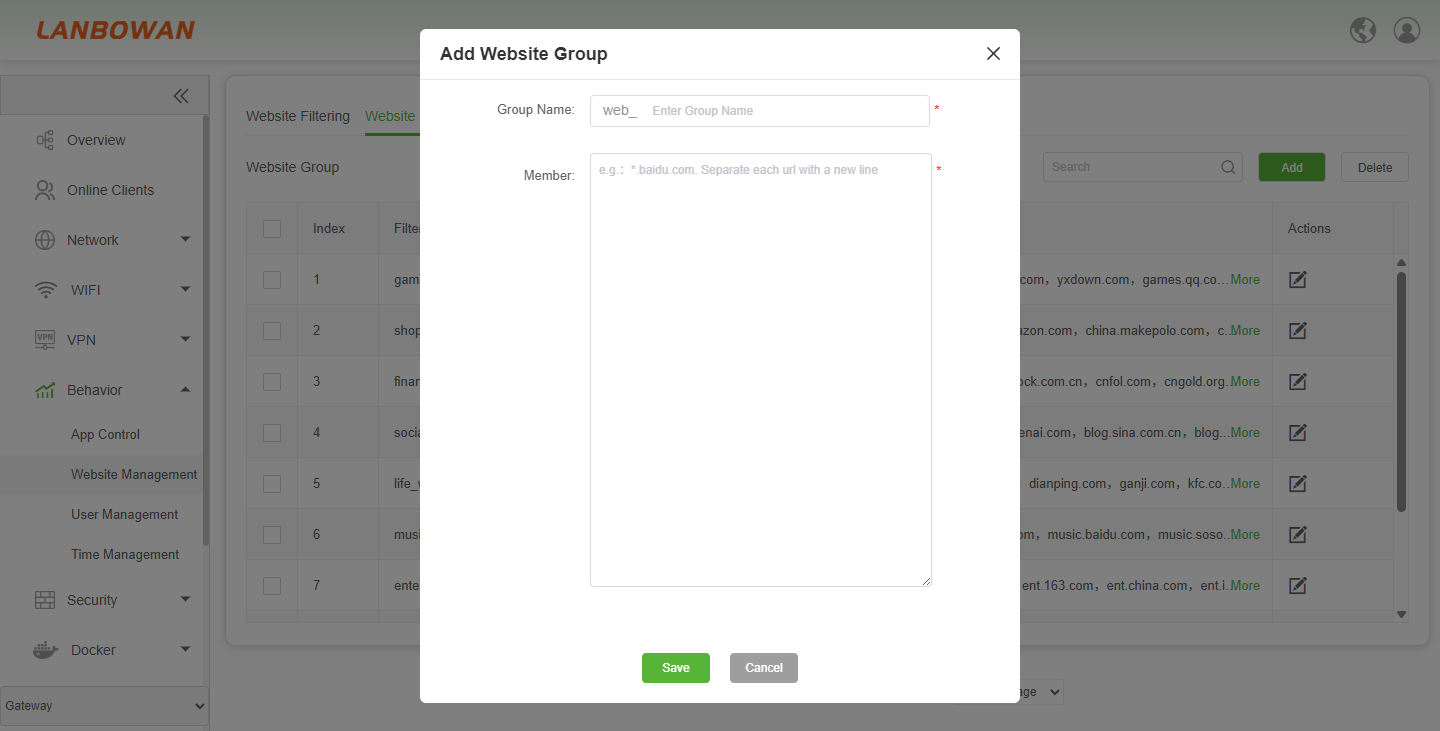
Add Website Group
Add Website Group is used to create a website group by specifying a group name and adding website or domain members line by line (wildcard format supported), forming a website object group that can be referenced by website filtering policies for centralized management and batch rule application.
App Control
App Control
App Control is used to configure application access control policies by user group, time schedule and policy group, supporting specification of blocked applications, remarks, and rule querying, adding, editing and deletion, to achieve granular control over network application behavior.
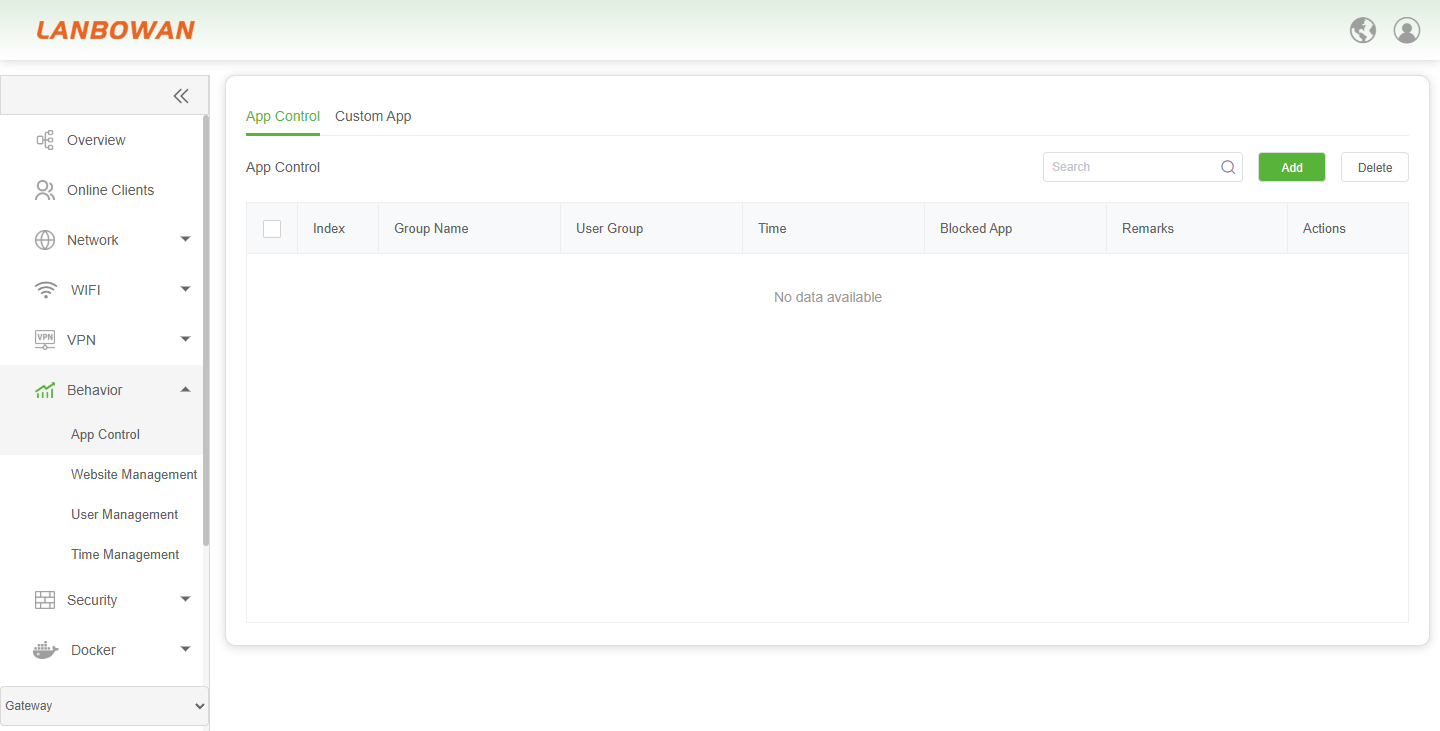
Parameter Description:
| Parameter | Description |
|---|---|
| Checkbox | Selection box for selecting one or multiple App Control rules for batch operations. |
| Index | Sequential number identifying each App Control rule entry in the list. |
| Group Name | Name of the policy group used to identify the application control rule. |
| User Group | User group(s) to which the application control rule applies. |
| Time | Time schedule or time policy when the rule takes effect. |
| Blocked App | Application(s) or application group(s) to be blocked under this rule. |
| Remarks | Additional description or comment for the rule. |
| No data available | Status prompt indicating that no App Control rules exist currently. |
Add App Filtering
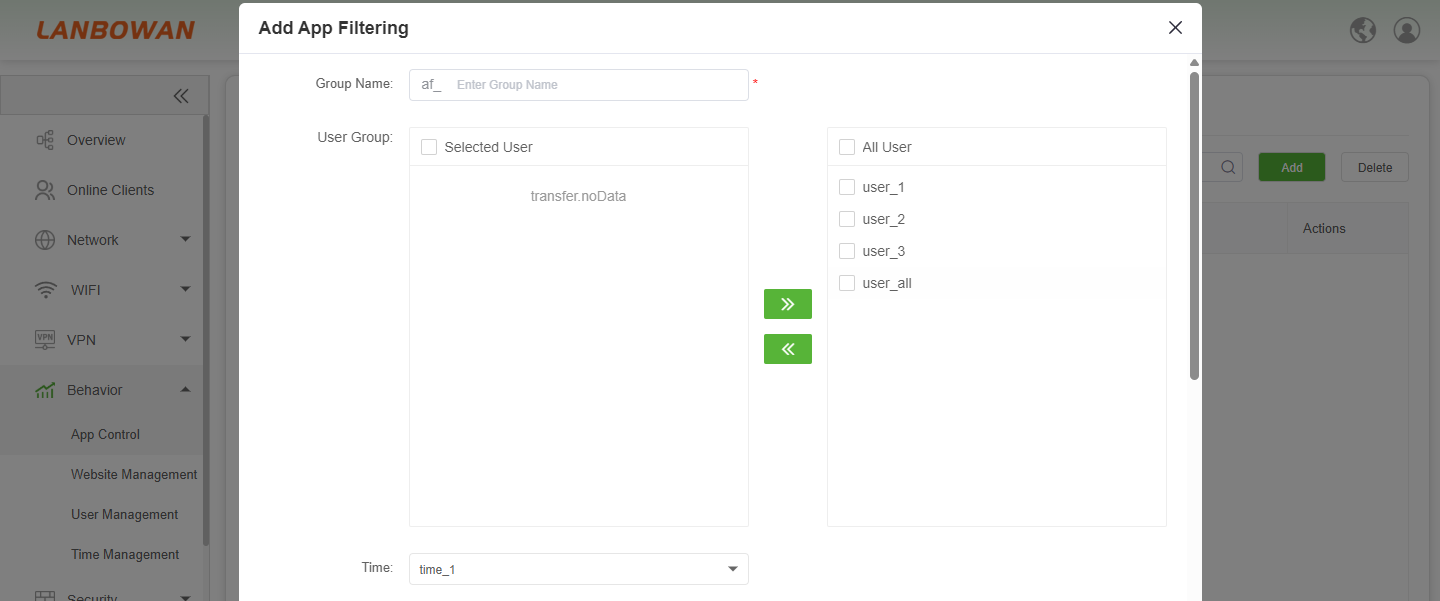
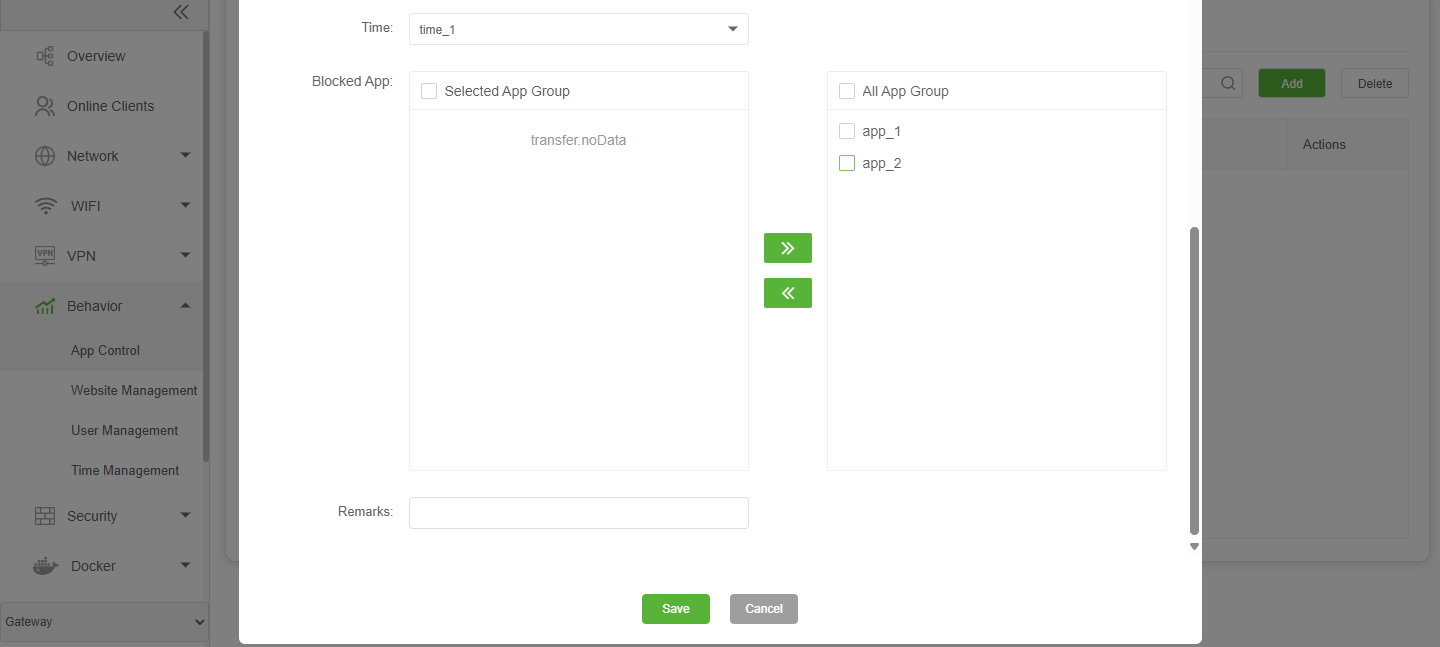
Add App Filtering is used to create application filtering rules by specifying the policy group name, associating target user groups, effective time schedule and application groups to be blocked, with optional remarks, and saving to form filtering policies that control application access granularly by user and time.
Configuration Steps:
- Enter the app filtering policy group name in the Group Name field (required).
- In the User Group area, check target users/groups from the right list (e.g., All User, user_1, user_2, user_3, user_all) and click “<<” to move them to Selected User on the left; to remove, check items on the left and click “>>”.
- Select the effective time schedule (e.g., time_1) from the Time dropdown.
- In the Blocked App area, check app groups to be blocked from the right list (e.g., All App Group, app_1, app_2) and click “>>” to move them to Selected App Group on the left; to remove, check items on the left and click “<<”.
- Enter remarks/description for the rule in the Remarks field (optional).
- Click Save to apply and save the configuration, or click Cancel to discard and close the window.
Custom App
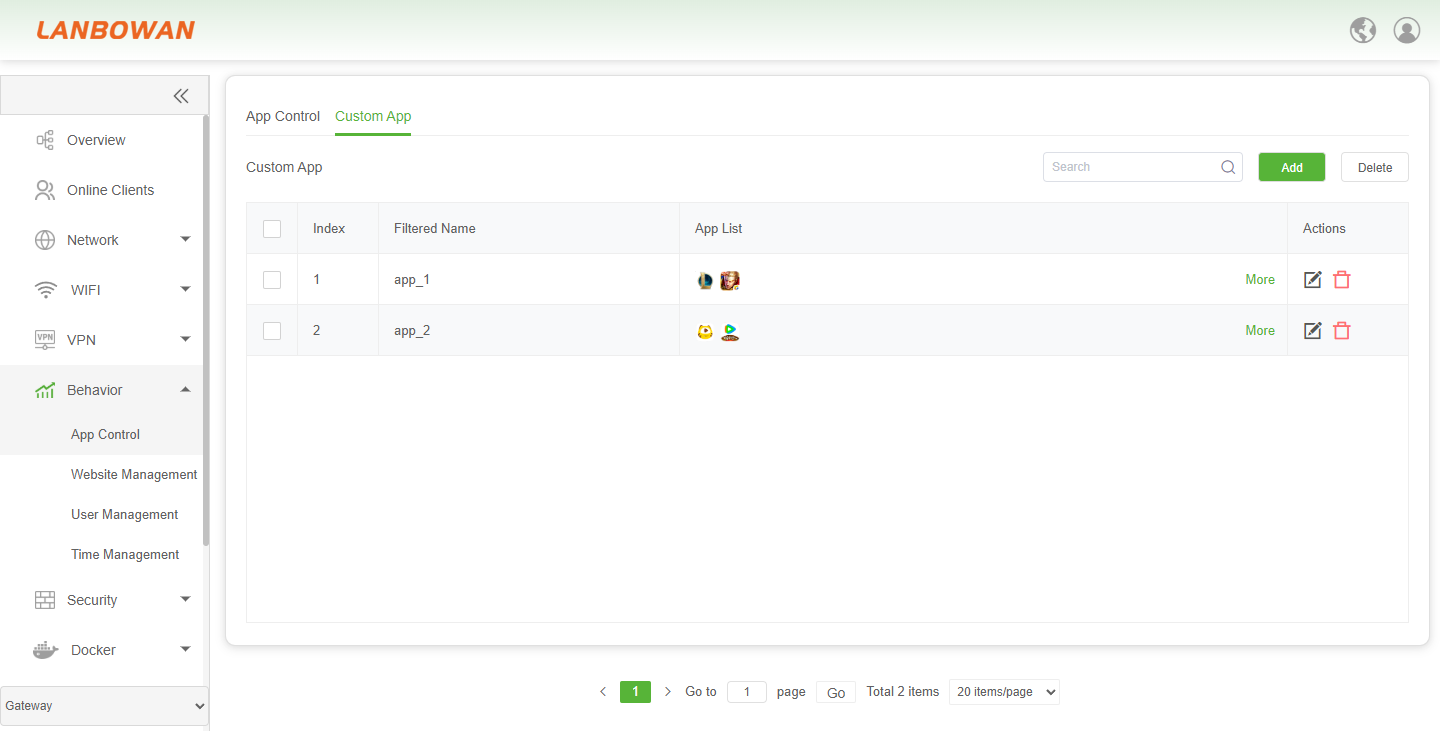
Custom App is used to define custom application filtering objects, supporting creation of named app groups and management of member app lists, with search, add, edit, delete and detail expansion operations, for flexible reference and granular management of specific applications in app control policies.
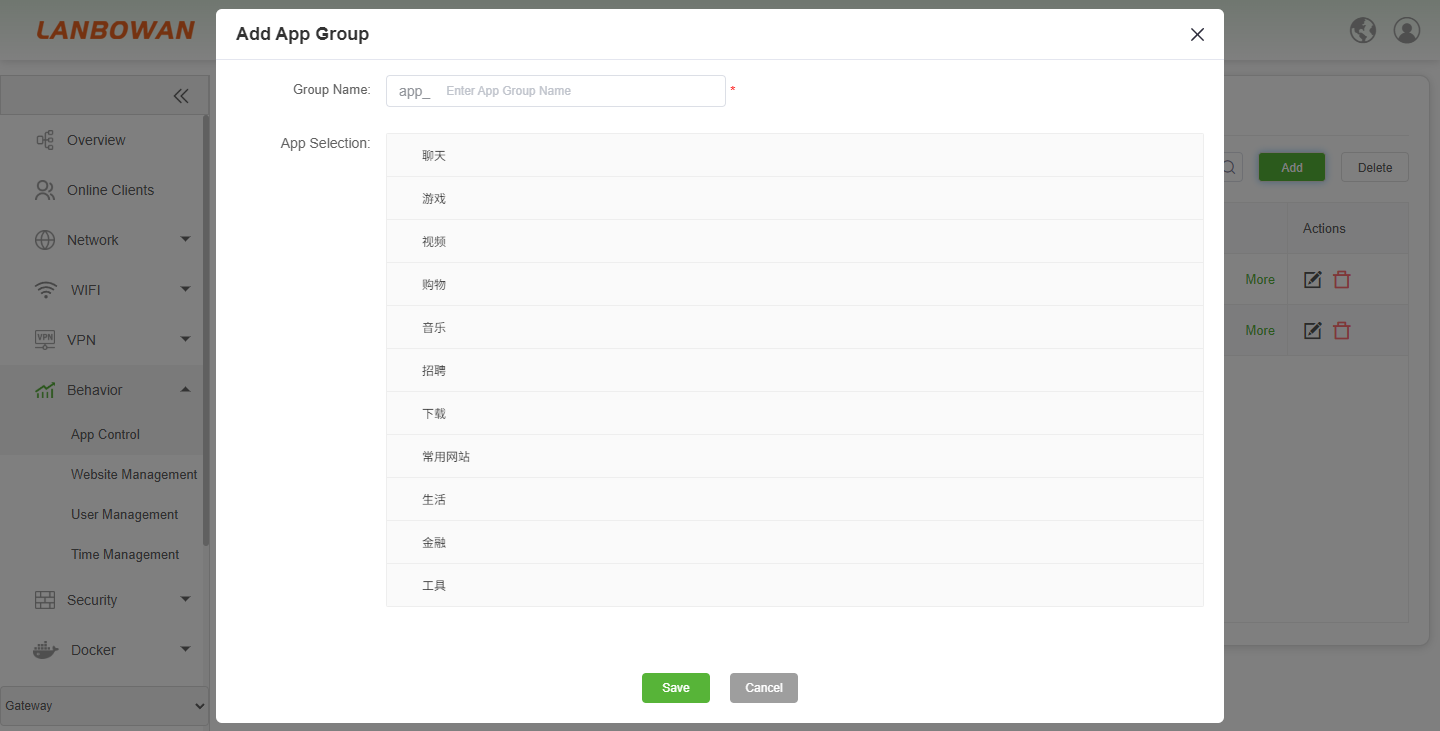
Add App Group
Add App Group is used to create a custom app group by specifying the group name and selecting member apps from categorized app lists (such as chat, games, video, shopping, music, downloads, etc.), and saving to generate an app group that can be referenced in app filtering rules.