
Diagnostic
Network Tools
PING
The Network Tools feature on the T830 provides administrators with an intuitive web-based diagnostic interface, currently supporting Ping tests. It allows users to input a target IP address or domain name, and flexibly customize the Ping count and packet size (in Bytes). By clicking the Start or Stop buttons, connectivity probes can be easily initiated, with real-time feedback on key information such as latency and packet loss displayed in the Result area. This empowers operators to quickly troubleshoot network failures and evaluate link quality.
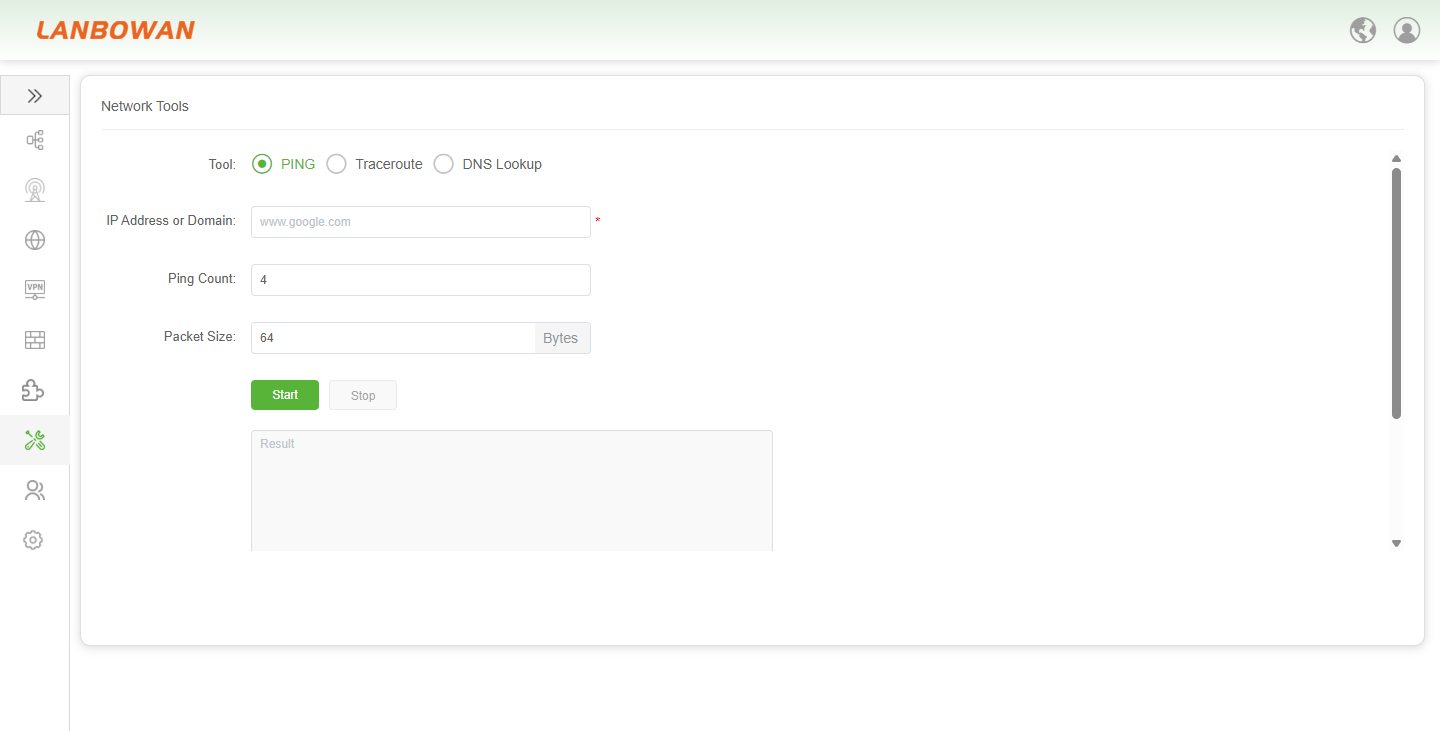
Parameter Description:
| Parameter | Description |
|---|---|
| IP Address or Domain | The destination target for the network connectivity test, which can be a specific IPv4/IPv6 address or a resolvable domain name (e.g., www.google.com). |
| Ping Count | The total number of ICMP echo request packets to be sent during the diagnostic process, used to define the duration and volume of the probe. |
| Packet Size | The data payload size of each Ping packet measured in Bytes, allowing administrators to simulate different network traffic loads for advanced link quality testing. |
Traceroute
The Traceroute feature within the Network Tools of the T830 provides administrators with a convenient web-based link diagnostic interface. It allows users to input a target IP address or domain name and customize the maximum TTL (Max TTL) hops to initiate a trace task. By controlling the detection process with Start or Stop buttons, the complete routing path taken by data packets from the device to the target host, along with the latency information of each hop, is displayed in real time in the Result area. This enables precise identification of node failures and routing directions in network transmission.
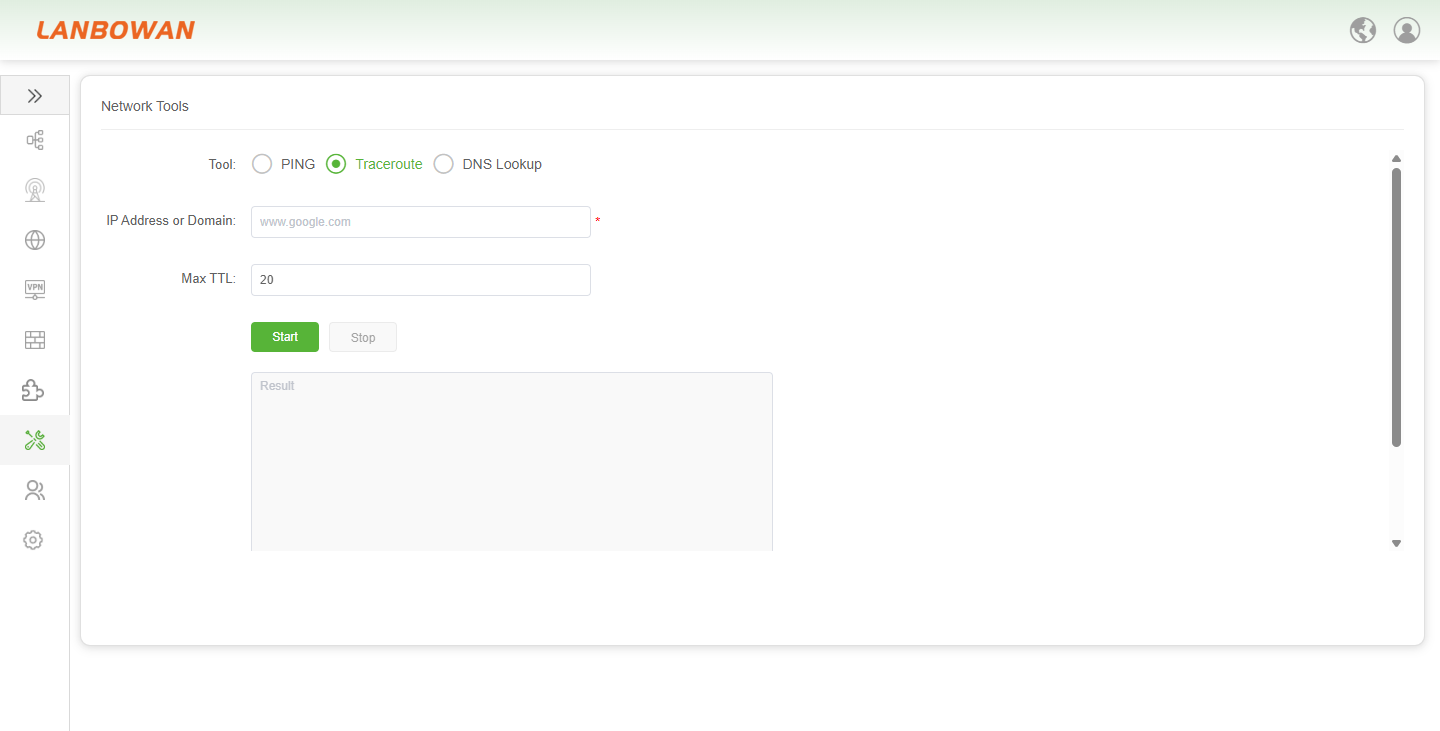
Parameter Description:
| Parameter | Description |
|---|---|
| IP Address or Domain | The ultimate destination target for the Traceroute diagnostic, which can be entered as a specific IP address or a resolvable domain name to track the data path. |
| Max TTL | The maximum Time To Live value (number of hops) for the probe packets, determining the maximum depth of the route trace before the packets are discarded by intermediate nodes. |
| Start / Stop | Control buttons to initiate or terminate the Traceroute probing process, allowing administrators to manage the diagnostic task in real time. |
DNS Lookup
The DNS Lookup feature within the Network Tools of the T830 provides administrators with a convenient web-based diagnostic interface. It allows users to input a target domain name or IP address and initiate a resolution task by clicking the Start or Stop buttons. The corresponding IP address or domain records are displayed in real time in the Result area, assisting operators in quickly verifying the operational status of DNS servers and troubleshooting domain name resolution failures.
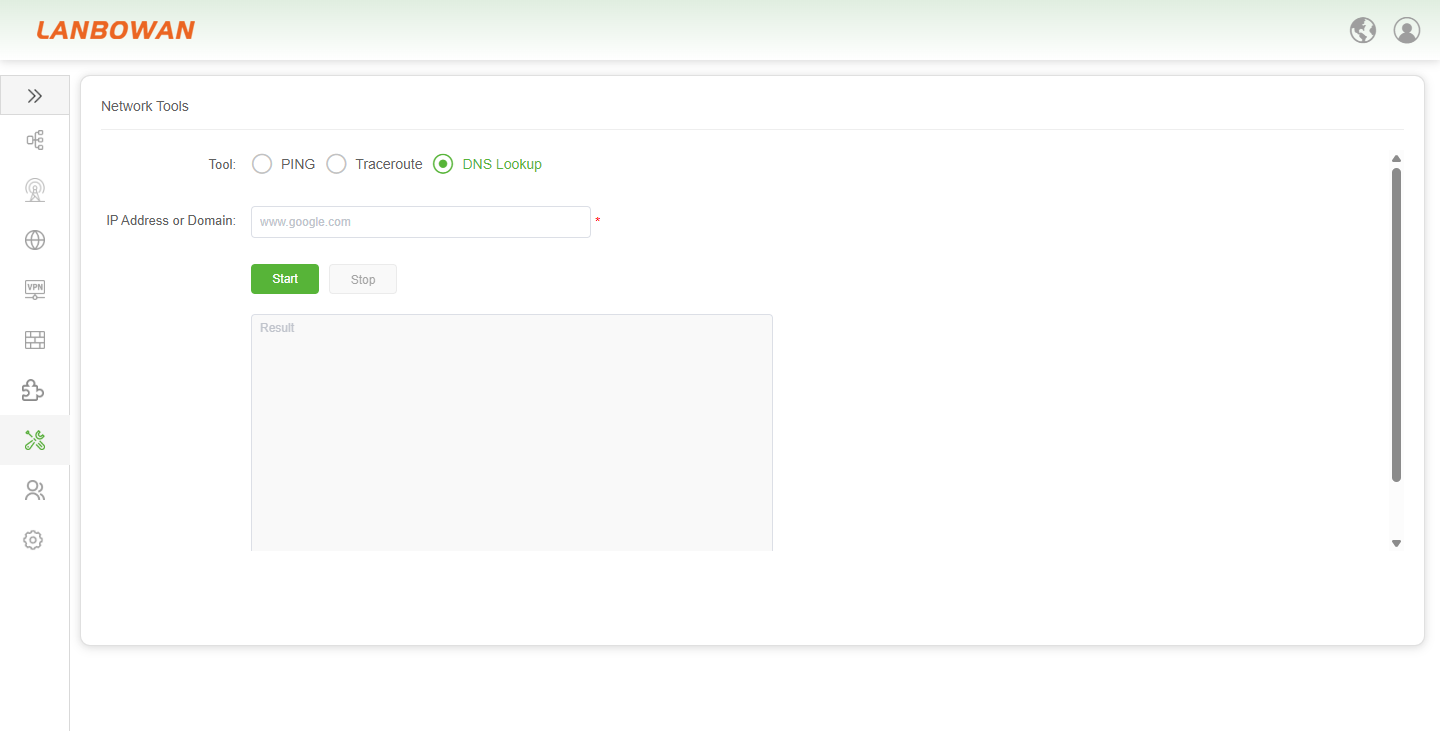
Parameter Description:
| Parameter | Description |
|---|---|
| IP Address or Domain | The target domain name (e.g., www.google.com) or IP address to be queried, serving as the essential input for the DNS Lookup diagnostic task. |
| Start / Stop | Control buttons to initiate or terminate the DNS resolution process, allowing administrators to execute the lookup or halt it mid-process as needed. |
| Result | The output display area where the resolved IP addresses or domain records are presented in real time upon successful execution of the lookup task. |
Packet Capture
The Packet Capture feature of the T830 provides network administrators with powerful web-based traffic capturing and in-depth analysis capabilities. It can capture packets precisely through configurable filters by flexibly configuring filter conditions such as the capture interface, protocol type, specific IP address, file size limit, and packet count limit. The capturing process can be controlled via Start or Stop buttons, ultimately generating a downloadable PCAP file (PCAP File) for offline troubleshooting and network security auditing using professional tools.
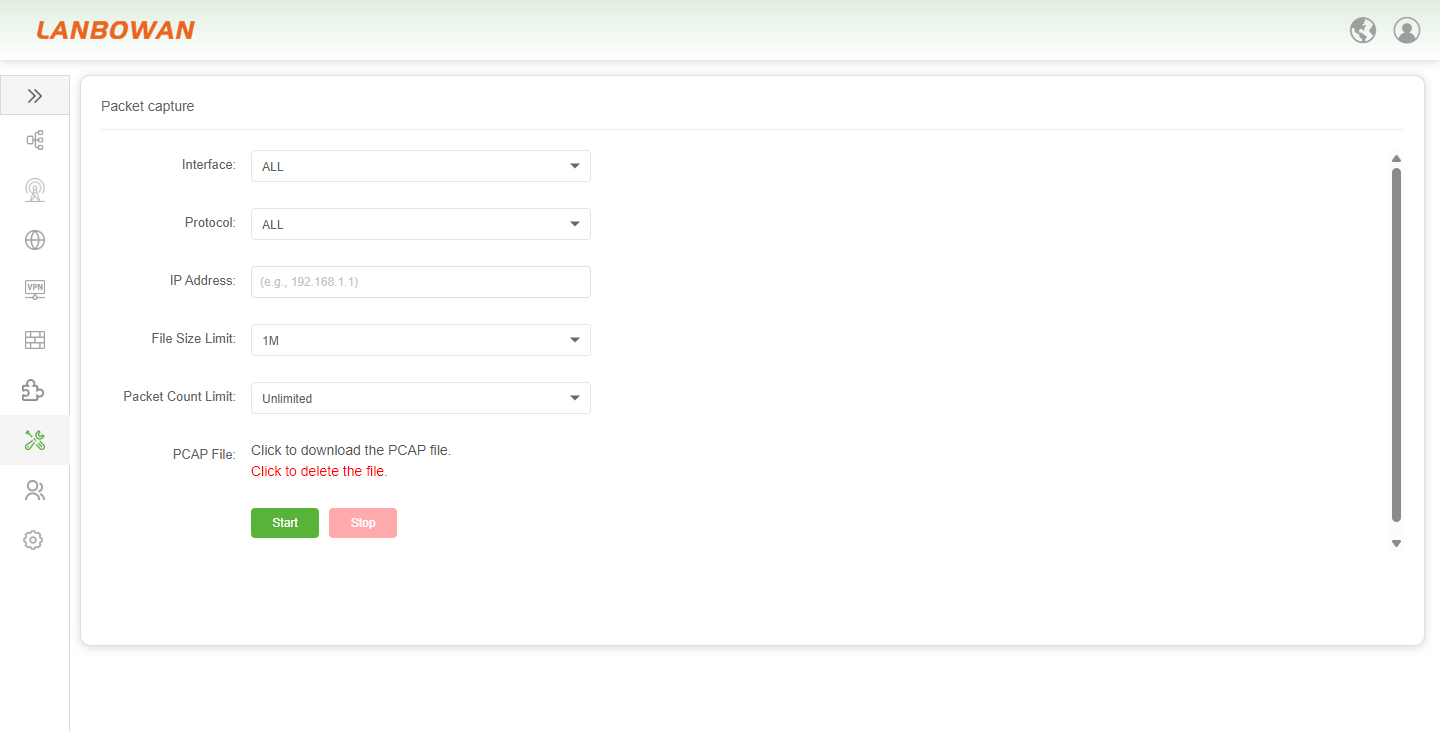
Parameter Description:
| Parameter | Description |
|---|---|
| Interface | Specifies the network interface for packet capturing on the T830. Options include "ALL" for all interfaces, "br-lan" for the LAN bridge, and "wan" which becomes available and syncs automatically when the WAN interface is enabled. |
| Protocol | Filters the specific network protocol type to be captured. Supported options include "ALL", along with specific protocols such as TCP, UDP, ICMP, ARP, and IP, allowing for precise traffic isolation. |
| IP Address | An optional filter field to capture traffic associated with a specific host IP address (e.g., 192.168.1.1), used to narrow down the diagnostic scope to relevant communications only. |
| File Size Limit | Defines the maximum storage size for the captured PCAP file. Supported preset options range from 1M up to 16M (1, 2, 4, 6, 8, 10, 12, 16Mb), preventing excessive disk usage. |
| Packet Count Limit | Sets the maximum number of packets to be captured. Supported options include "Unlimited" (No Limit) along with specific counts of 100, 500, 1000, and 2000 packets. |
| PCAP File | The display and download area for the generated packet capture file in standard PCAP format, enabling offline deep analysis with external network diagnostic tools. |
| Start / Stop | Control buttons to initiate or terminate the packet capturing process, providing administrators with real-time management capabilities over the diagnostic task. |
Discovery
The Discovery feature of the T830 provides network administrators with an intuitive LAN device management and visualization inventory. It automatically scans and displays real-time core information of online devices within the local area network, including index, host name, device type, IP address, MAC address, product name, and software version. It also supports quick retrieval via the search box in the upper right corner, thereby assisting operators in efficiently understanding/visualizing the network topology and accurately locating terminal devices.
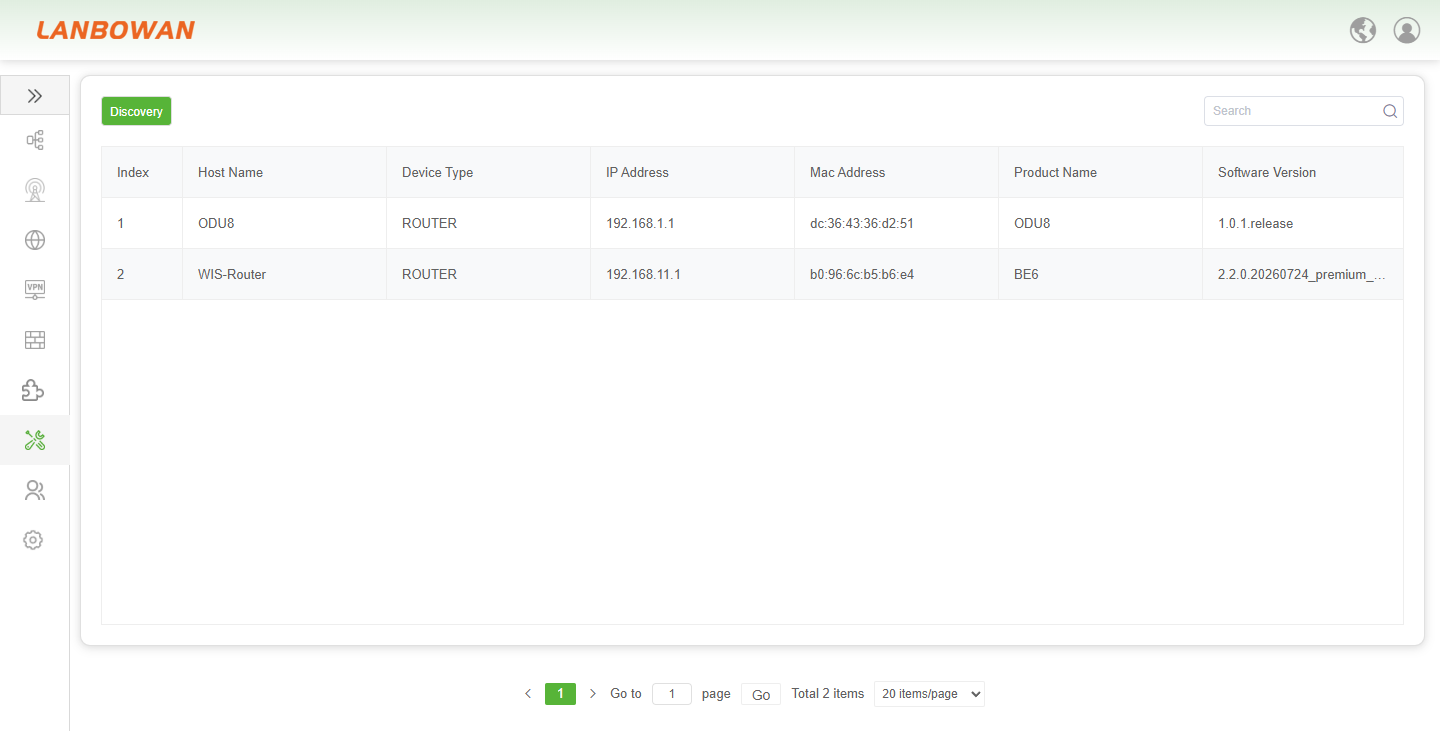
Parameter Description:
| Parameter | Description |
|---|---|
| Index | A sequential numerical identifier assigned to each discovered device in the list, providing a clear reference order for network inventory management. |
| Host Name | The local hostname or alias configured for the device, which helps administrators easily identify and distinguish specific devices within the network. |
| Device Type | The classification of the discovered device's functional role (e.g., ROUTER), indicating its primary operation mode or category within the network topology. |
| IP Address | The current Internet Protocol address assigned to the device, serving as its unique logical identifier for communication within the local area network. |
| MAC Address | The unique physical Media Access Control address burned into the device's network interface, used for precise identification at the data link layer. |
| Product Name | The specific model or product series name of the discovered device, allowing administrators to quickly recognize the exact hardware type. |
| Software Version | The current firmware or operating system version running on the device, which is critical for assessing feature support, compatibility, and security patch levels. |
Online Clients
The Online Clients feature of the T830 provides network administrators with a real-time terminal access monitoring and management view. It intuitively displays the index, MAC address, IP address, access interface, and real-time online status of each client currently on the network. It also supports quickly searching for specific devices via the search box or updating data by clicking the refresh button, thereby assisting operators in keeping track of network load at any time and rapidly troubleshooting abnormal accesses.
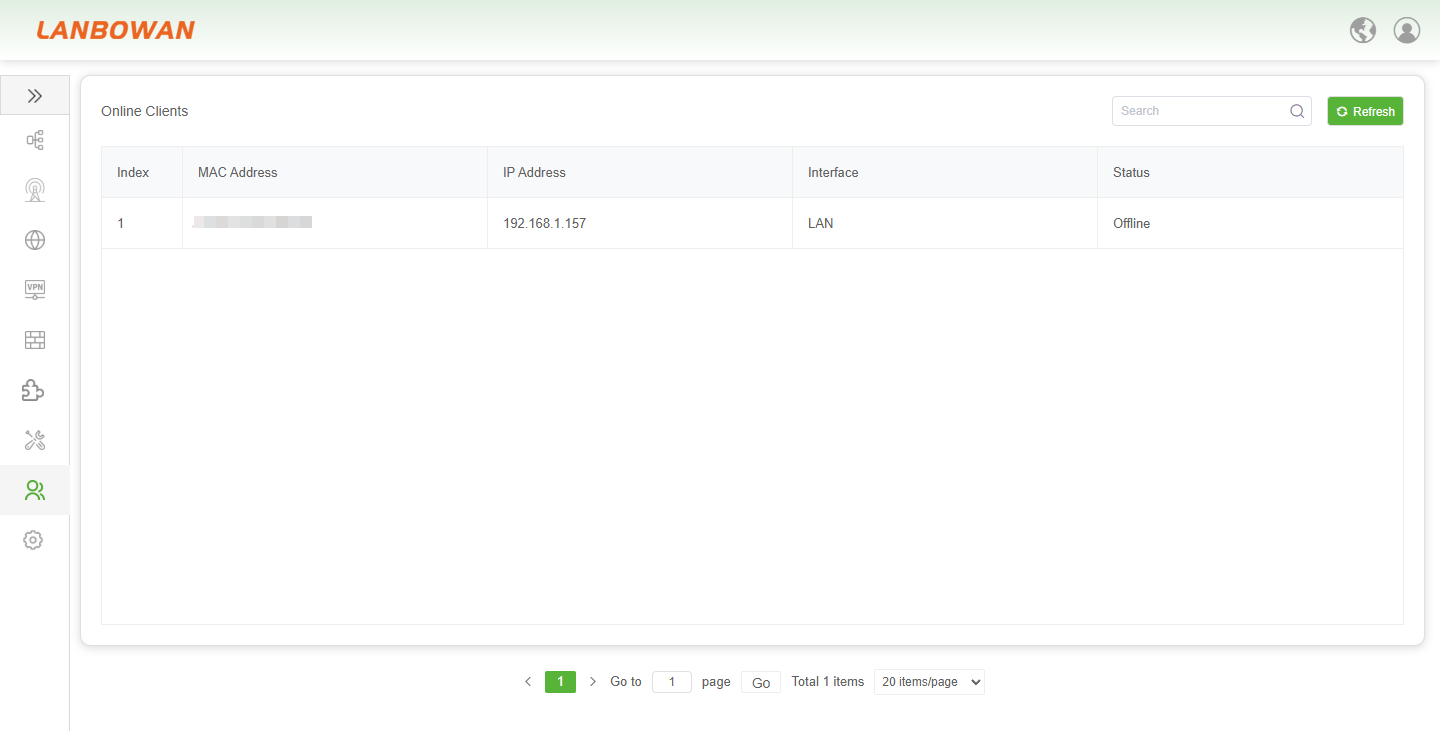
Parameter Description:
| Parameter | Description |
|---|---|
| Index | A sequential numerical identifier assigned to each client entry in the list, providing a clear reference order for managing and tracking connected devices. |
| MAC Address | The unique physical Media Access Control address of the client device. A "-" indicates that the device is currently offline and its MAC address is not actively detected. |
| IP Address | The current Internet Protocol address assigned to the client device, serving as its unique logical identifier for communication within the local area network. |
| Interface | Indicates the specific network interface (e.g., LAN) through which the client device is connected to the T830, helping to locate the physical or logical access point. |
| Status | Displays the current connection state of the client, where "Online" (typically highlighted in green) means the device is actively connected, and "Offline" means it is disconnected. |