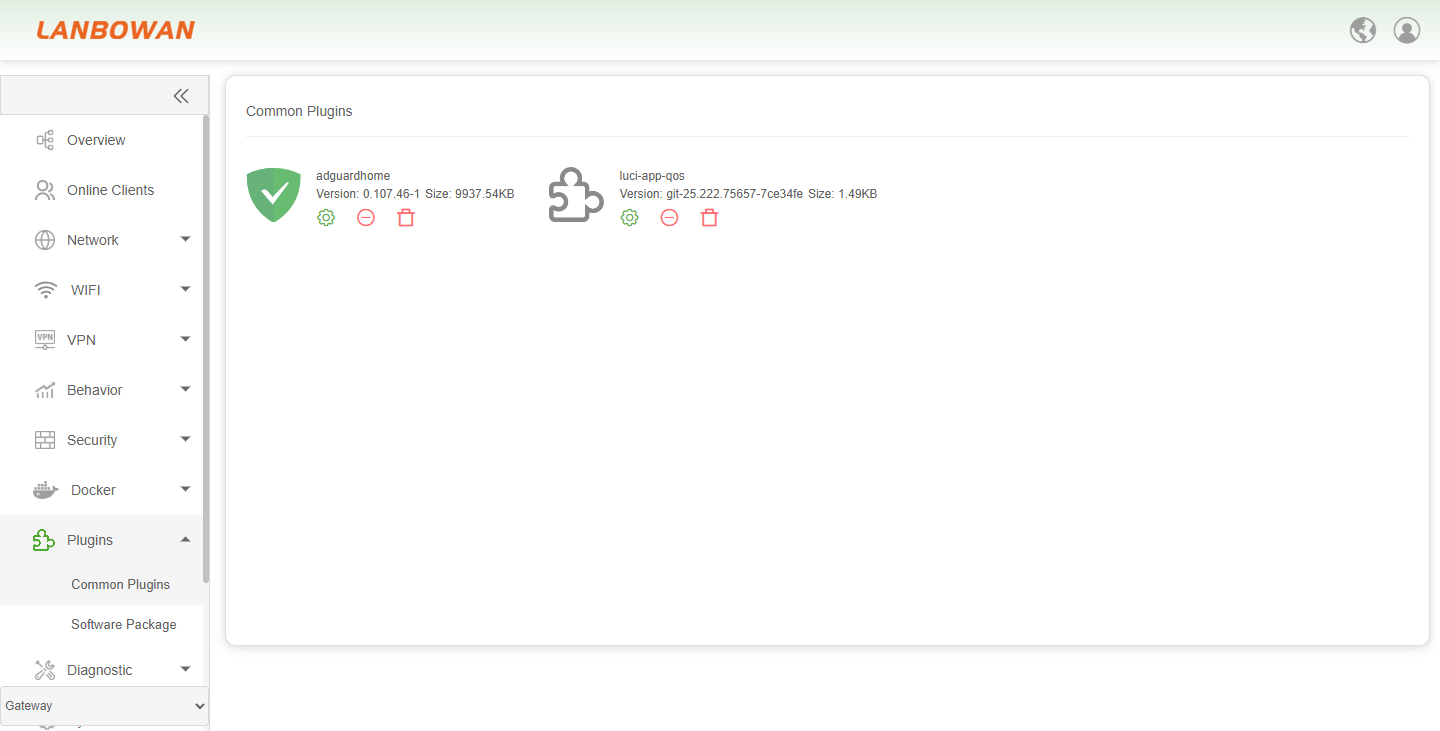
Plugins
Software Packages
The Software Packages page is used to manage software packages on the device. You can view information such as the package name, version, and size, and perform installation, update, and uninstallation operations.
The page supports filtering by software package status. You can also quickly find a specific software package by using the search box or the first-letter categories. Click Refresh to refresh the software package list and related information.
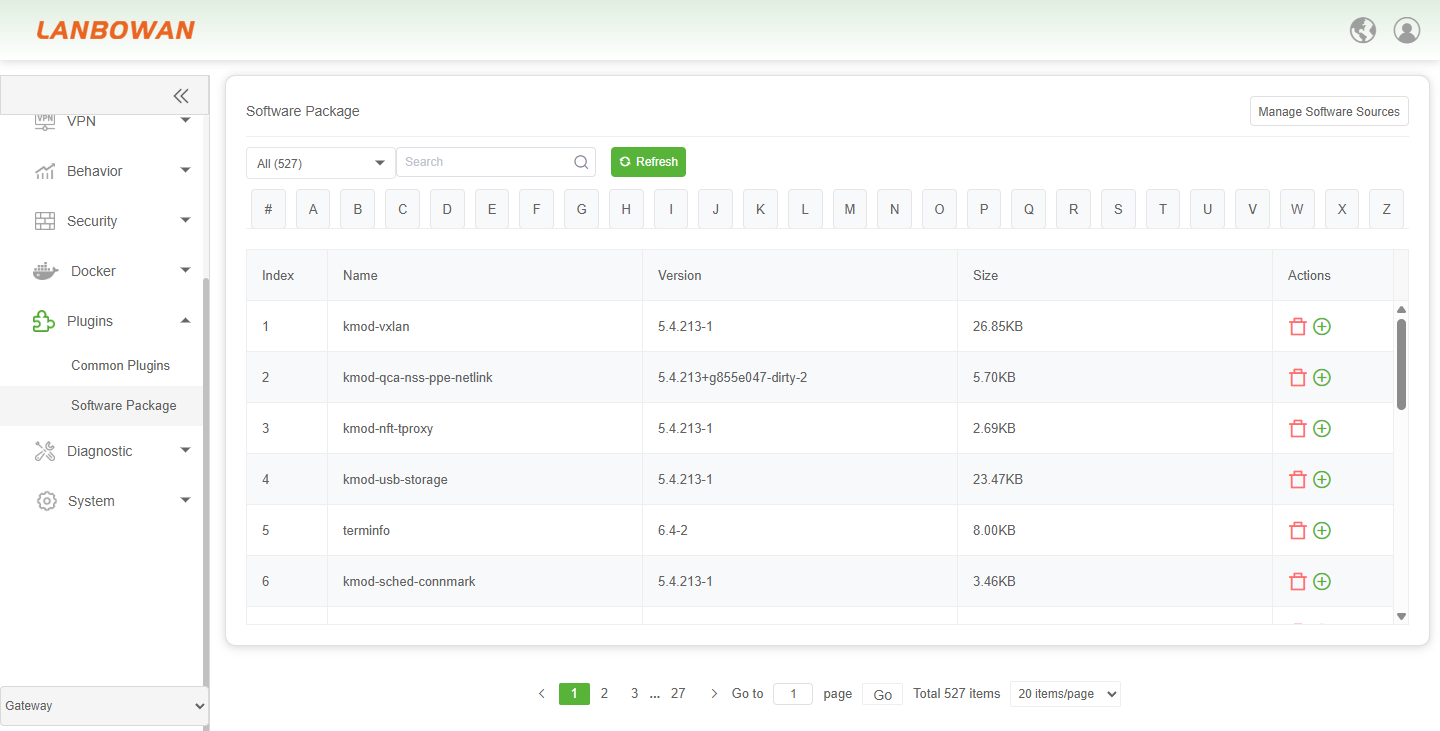
Main features include:
- Software package list: Displays information such as software package name, version, and size.
- Search and filtering: Supports keyword search, status filtering, and quick lookup by first letter.
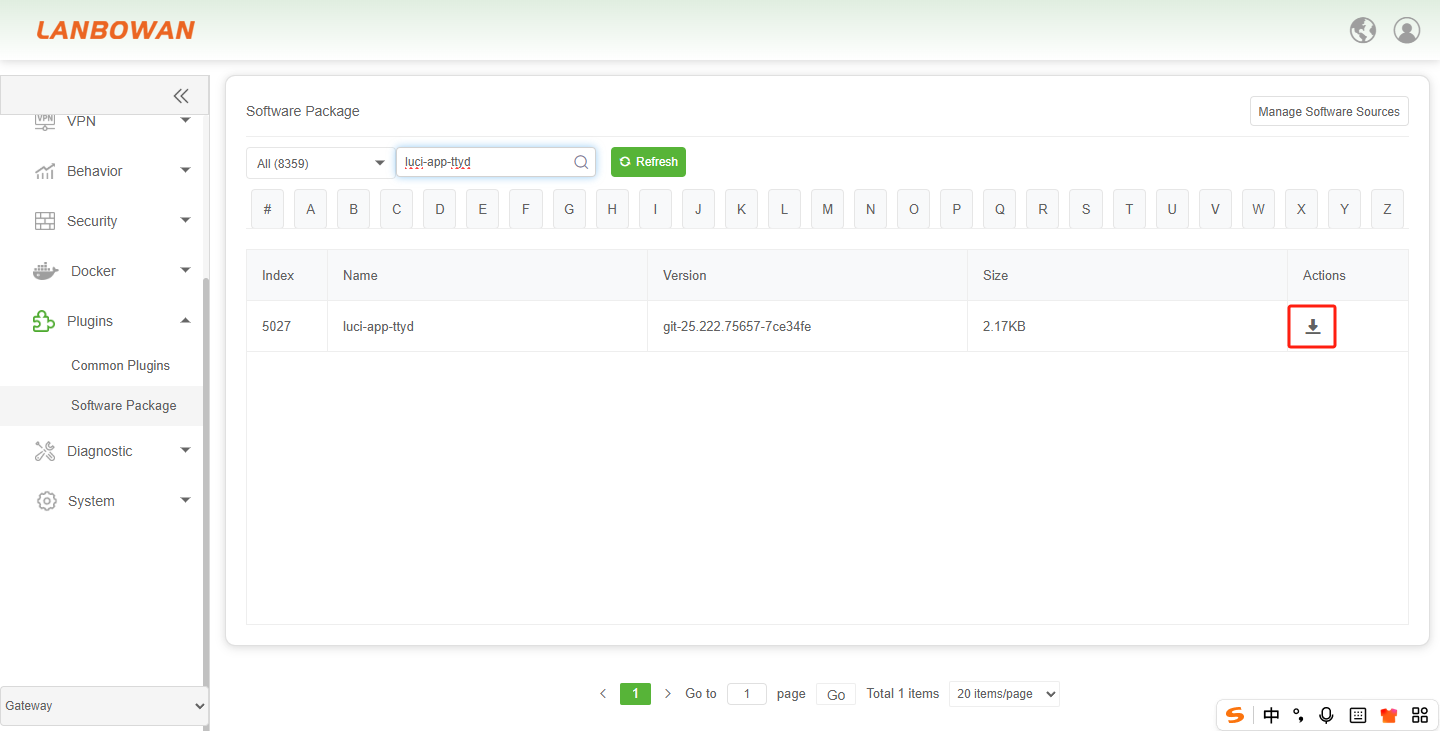
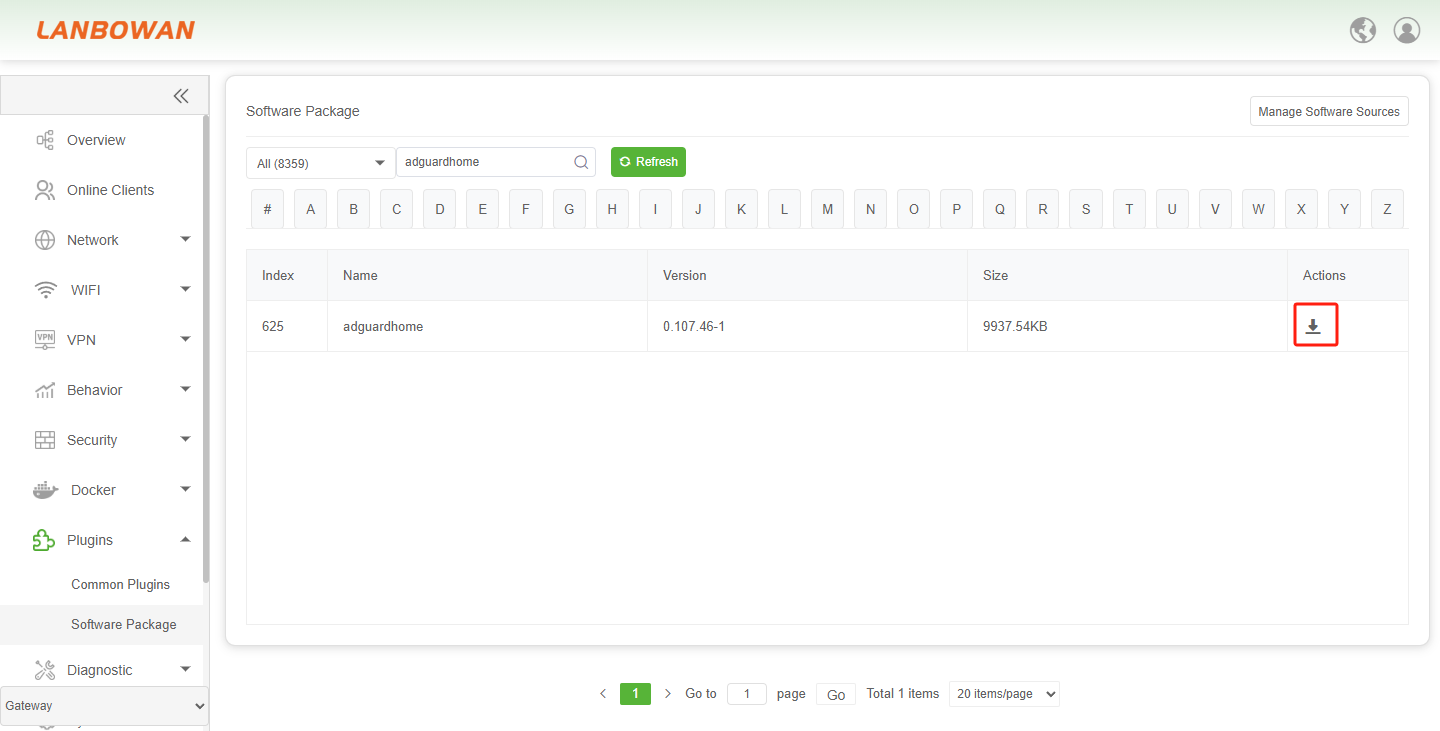
- Install software package: Click the download button in the Actions column to install the corresponding software package.
- Update software package: Click the refresh button in the Actions column to update the corresponding software package.
- Uninstall software package: Click the Uninstall button in the Actions column to uninstall the corresponding software package.
- Software source management: Open the software source management page through Manage Software Sources to configure software sources.
- Pagination: When there are many software packages, you can browse them by page number, jump to a specific page, or adjust the number of items displayed per page.
Update Software Packages
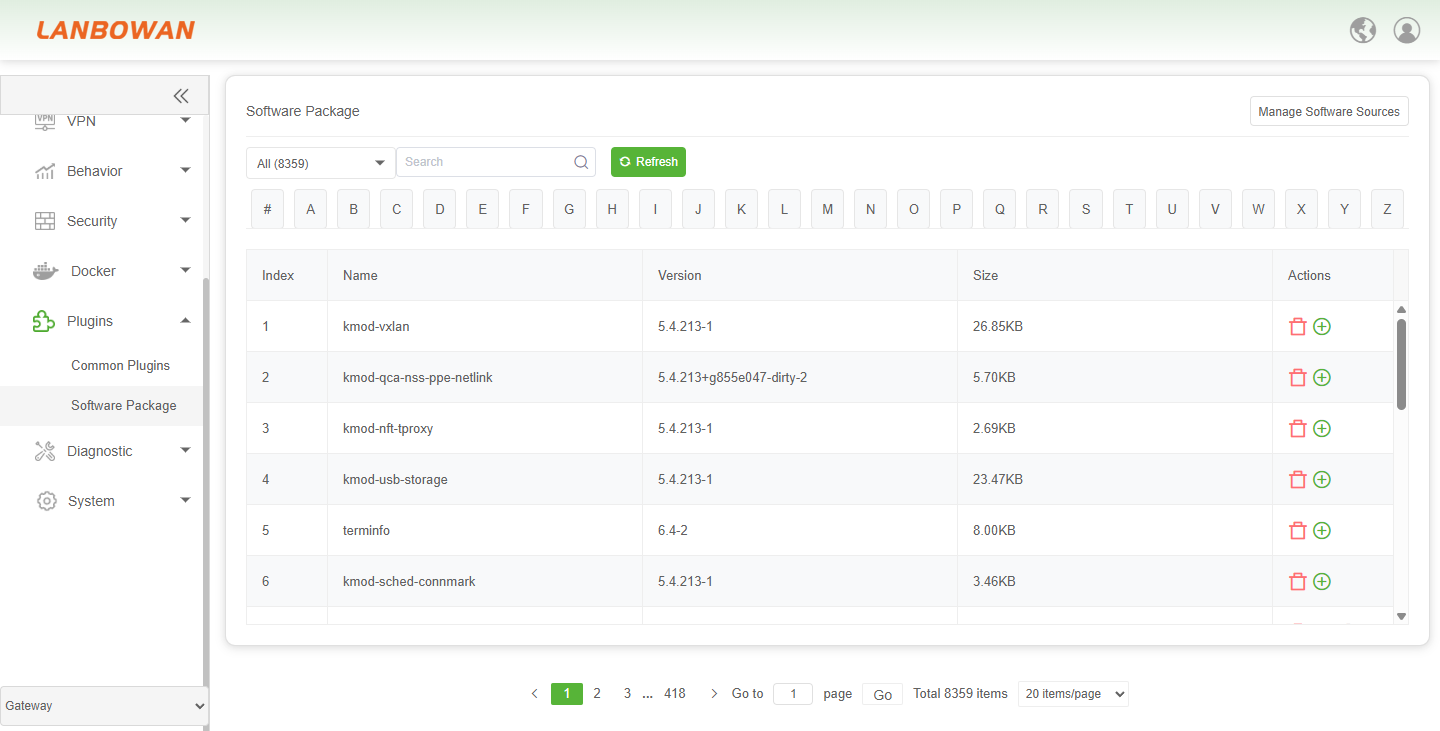
After the device is connected to the internet, click the Refresh button shown in the figure to obtain the latest software package list.
The updated software package list is shown in the figure below:
Download Software Packages
Add Software Packages to the Favorite Packages List
Find the software package you want to add to the favorites list, then click the Add button to add it to the Favorite Packages list.
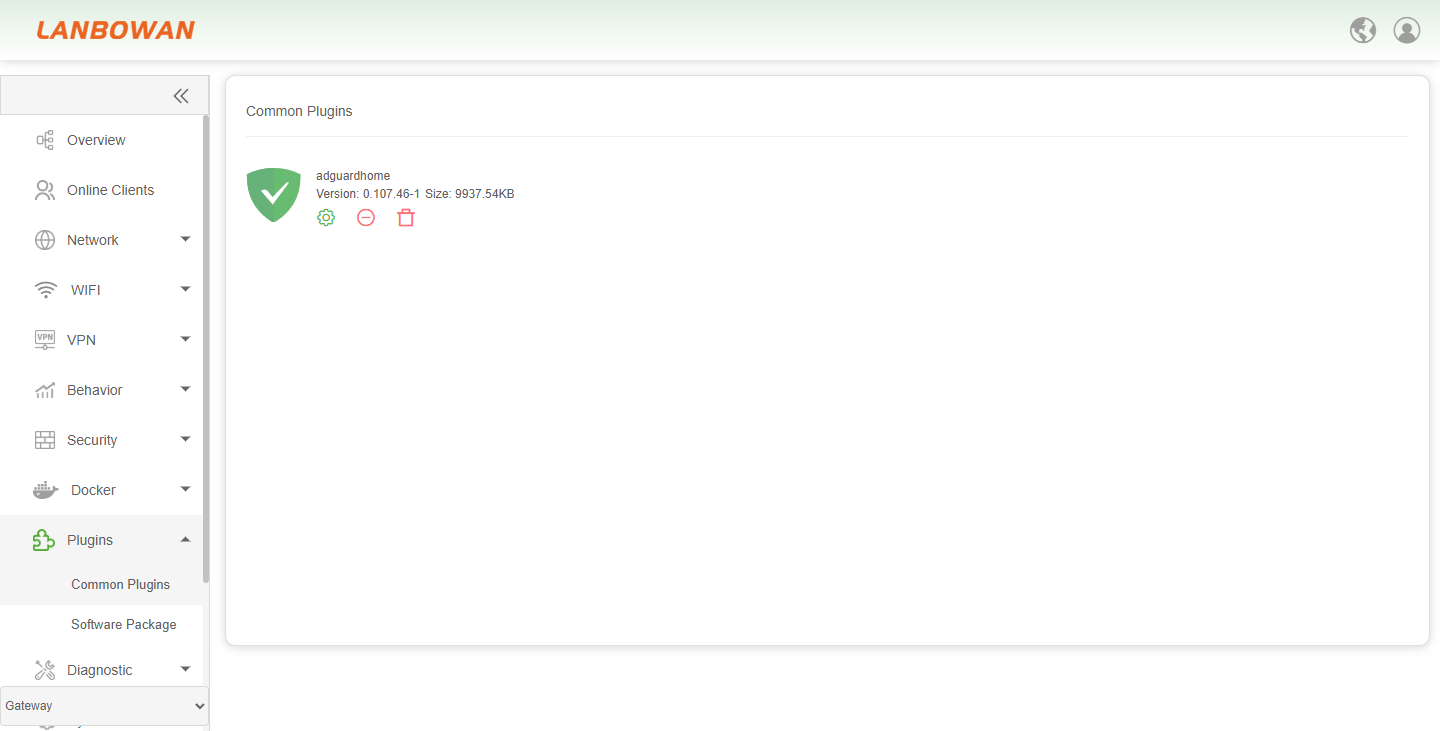
After adding it, you can see the added software package in the Favorite Packages list.
Add Custom Software Sources
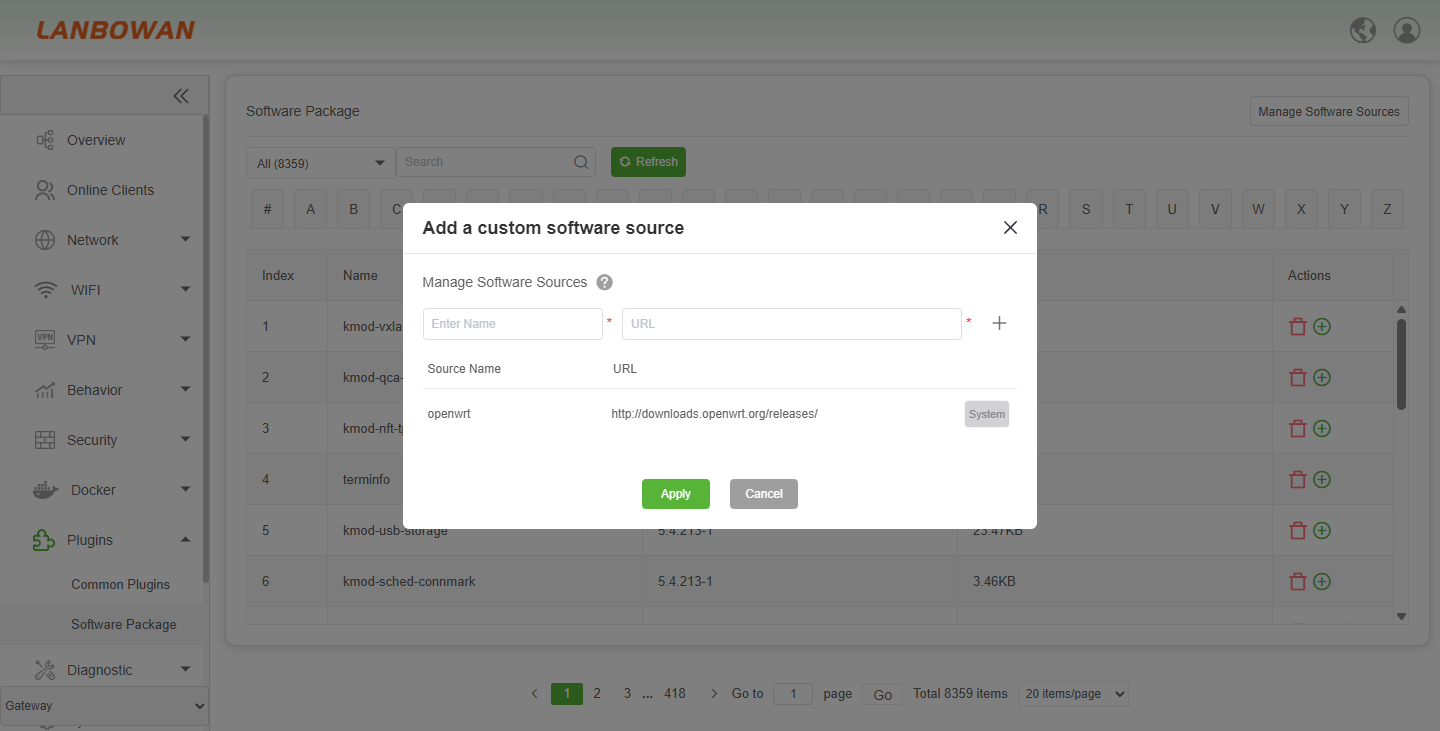
On the Software Packages page, click Manage Software Sources to open the custom software source management window. By adding custom software sources, you can obtain more available software packages from specified software source addresses.
When adding a software source, you need to enter the following information:
- Name: Enter the software source name to distinguish it from other software sources.
- URL: Enter the access address of the software source.
- Add (+): After entering the name and URL, click "+" to add the software source to the list.
- Apply: Save and apply the software source configuration.
- Cancel: Cancel the current operation and close the window.
The bottom of the page displays the currently configured software sources, including the software source name, URL, and other information. Built-in system software sources are identified by the System label.
Note: When adding a custom software source, make sure that the software source is compatible with the current device system version and hardware architecture. If an incompatible software source is used, software packages may fail to install, dependency conflicts may occur, or packages may not run properly after installation. Confirm compatibility before adding the source and installing related software packages.
Favorite Packages
The Favorite Packages page centrally displays and manages commonly used software packages on the device, making it easier for users to quickly view package information, open a package management page, or remove or uninstall a package.
The page displays each software package as a card and shows basic information such as the package name, version, and size. Current favorite packages include AdGuard Home, TTYD, Commands, SmartDNS, Watchcat, Aria2, QoS, and others.
Each software package provides the following operations depending on its actual status:
- Manage: Click the Manage button to open the management interface for the corresponding software package. Some packages provide an independent configuration or management page where related functions can be configured. Packages without an independent management interface may not provide this operation.
- Remove: Remove the software package from the Favorite Packages page. This only removes it from the favorites display and does not uninstall the package itself.
- Uninstall: Uninstall the corresponding software package from the device. After uninstallation, the functions related to this package will no longer be available.
This page is mainly used to centrally display frequently used software packages on the device, reducing the steps required to find packages and making it easier to quickly access package functions and perform routine management.